



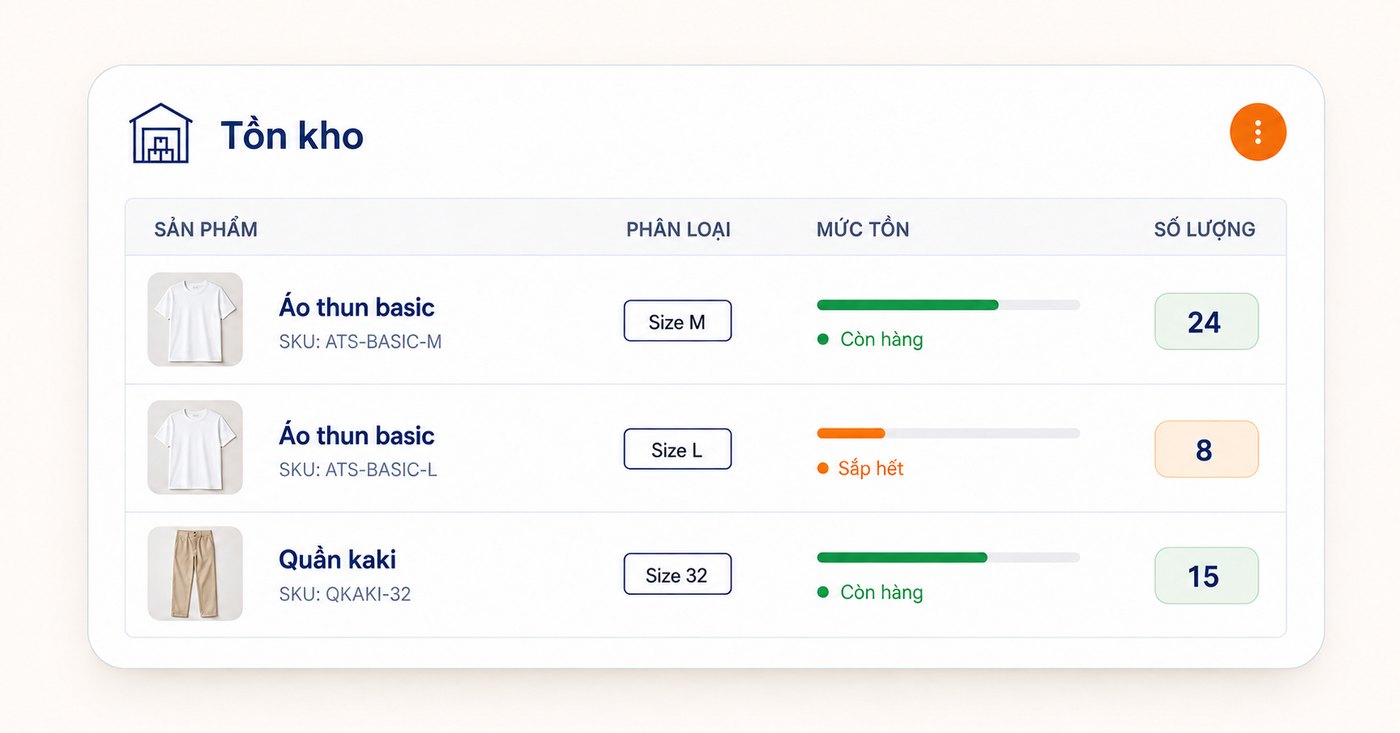
A customer asks "do you still have size L?", the staff member sees 3 on the screen but finds none on the shelf. The software did not miscount: at some point goods left or entered the stockroom without being recorded. Inventory software for a retail store only helps when every movement of goods has its own document. This article follows the life of an item in the store: opening stock, receiving, selling, transferring, returning, counting, and how Ordersys records each step.
The stock on screen is only right when every movement has a document
The stock figure is the sum of all documents, added and subtracted. Miss one type of document and the stock drifts with nobody knowing where it went wrong. The common movements and the matching documents in Ordersys:
| Where the goods go | Document in Ordersys | When the stock changes |
|---|---|---|
| Starting to use the software | Opening inventory entry: quantity, lot number, expiry date, cost price, supplier | Done once; after a branch has recorded transactions, opening stock can no longer be created |
| Goods arriving from a supplier | Purchase receipt | Approve the receipt: goods go to the "Incoming" column. Press Receive into stock: only then are they added to "Actual stock" |
| Selling to a customer | Counter sale | Deducted at the moment of sale |
| Moving to another branch | Transfer slip | Cannot transfer more than the stock at the sending branch |
| Returning to the supplier | Supplier return slip | Deducted from stock; cannot return more than what is on hand |
| Damaged, lost, or counted differently | Adjustment/stocktake slip | Changes only when the slip is approved |
Receiving: separate "goods on the way" from "goods on the shelf"
A purchase receipt records the supplier and, for each line, the quantity, purchase price, lot number and expiry date. Items are added to the receipt by scanning barcodes or loading an Excel file, with no need to type every line by hand.
The receipt goes through two steps. When the receipt is approved, the goods only sit in the "Incoming" column and are not yet added to stock. When the goods arrive, staff count what was actually delivered and then press Receive into stock; only then do the goods enter "Actual stock". Splitting it this way stops the counter from selling goods that have not arrived yet.
An approved receipt can print barcode labels for the goods on it. Payment for the goods is recorded as unpaid, partly paid, paid, or put on the supplier payables.
Selling, transferring between branches, returning to suppliers
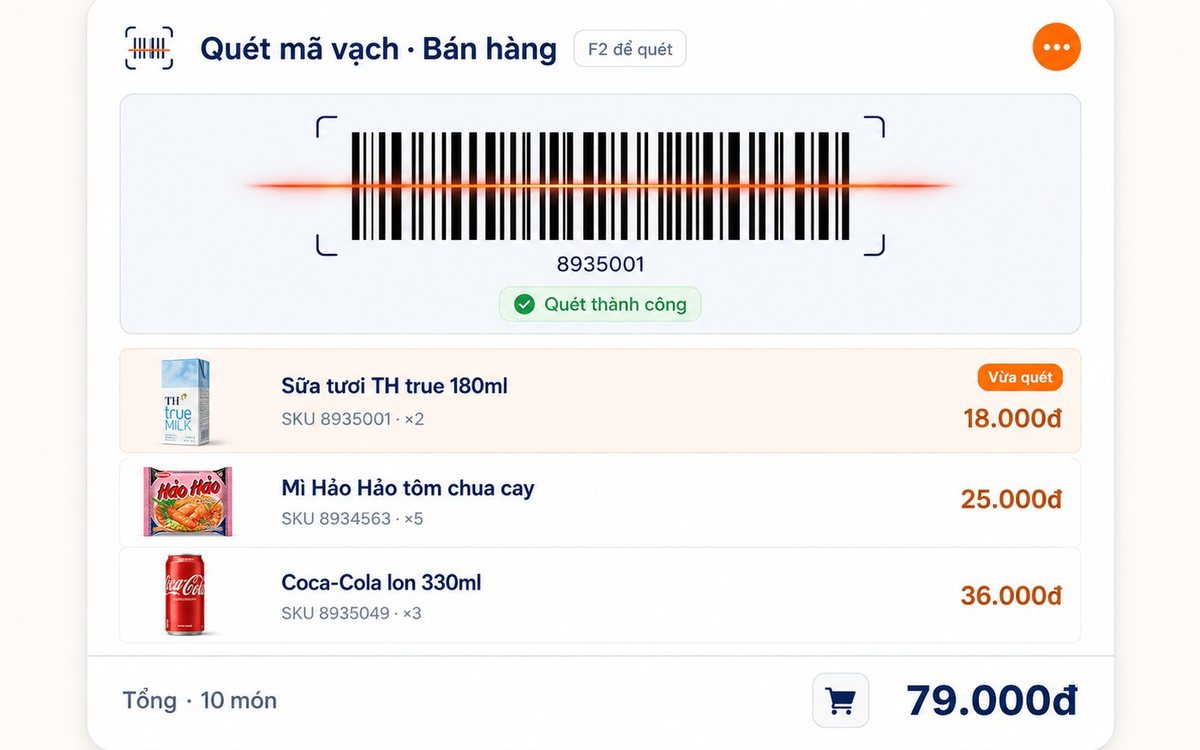
- Selling at the counter. Scan the barcode and the price appears; stock is deducted the moment the sale is made. If a customer asks about another variant, check on the screen and see the stock at other branches too.
- Branch transfers. The transfer slip records the sending branch, the receiving branch and the staff member who receives the goods. If the transfer quantity exceeds the stock at the sending branch, the software shows an error stating how much is left. The slip can be printed to travel with the goods.
- Returning to the supplier. Faulty or near-expiry goods sent back get a return slip. Stock is deducted according to the slip, and there is a document to reconcile with the supplier.
Stocktake and adjustment: a gap gets a slip and an approver
When a count shows a gap, nobody edits the number directly. The counter creates an adjustment slip, enters the increase or decrease for each line, attaches a file such as a photo of the count sheet, then saves it as a draft and submits it for approval. The manager approves or rejects it. A cancelled slip must state a reason.
The software does not allow an adjustment that pushes stock below zero. An approved slip automatically creates the matching stock-in or stock-out document, so every adjustment can be traced later. How to count quickly and why the numbers often drift is covered in stocktaking for retail stores: 5 steps and why the numbers drift.
Reading stock reports and setting stock limits
| Report | The question it answers |
|---|---|
| Stock In–Out–Balance report | Within a date range, how much of each item came in, how much went out, and how much is left |
| Stock-in details | Which goods entered stock, on which document, on which day |
| Stock-out details | Which goods left stock, on which document, on which day |
Each item can have a minimum and maximum stock level. With stock notifications turned on, the system alerts the manager whenever an item falls outside its range. For how to set the minimum, see minimum stock: when to reorder.
What to do in the first week with inventory software
- Day one: enter the item list and opening stock before the first sale.
- From then on: every delivery goes through a purchase receipt, including small batches the owner picks up personally.
- End of the week: count one group of best-selling items. If there is a gap, create an adjustment slip and find which movement was missing a document.
Receiving, selling, transfers, stocktakes and the stock in–out–balance report all live in Ordersys retail management software. Stores can try it free for 7 days: enter opening stock for one group of items, make a test purchase receipt, sell a few orders, then open the In–Out–Balance report and check whether the numbers match the shelf. If you often buy stock on credit, also read recording supplier payables when receiving goods. For setup advice, message Ordersys on Zalo or give us a call.
Sell by barcode, track stock across units, manage debts and see profit every day.
Other news
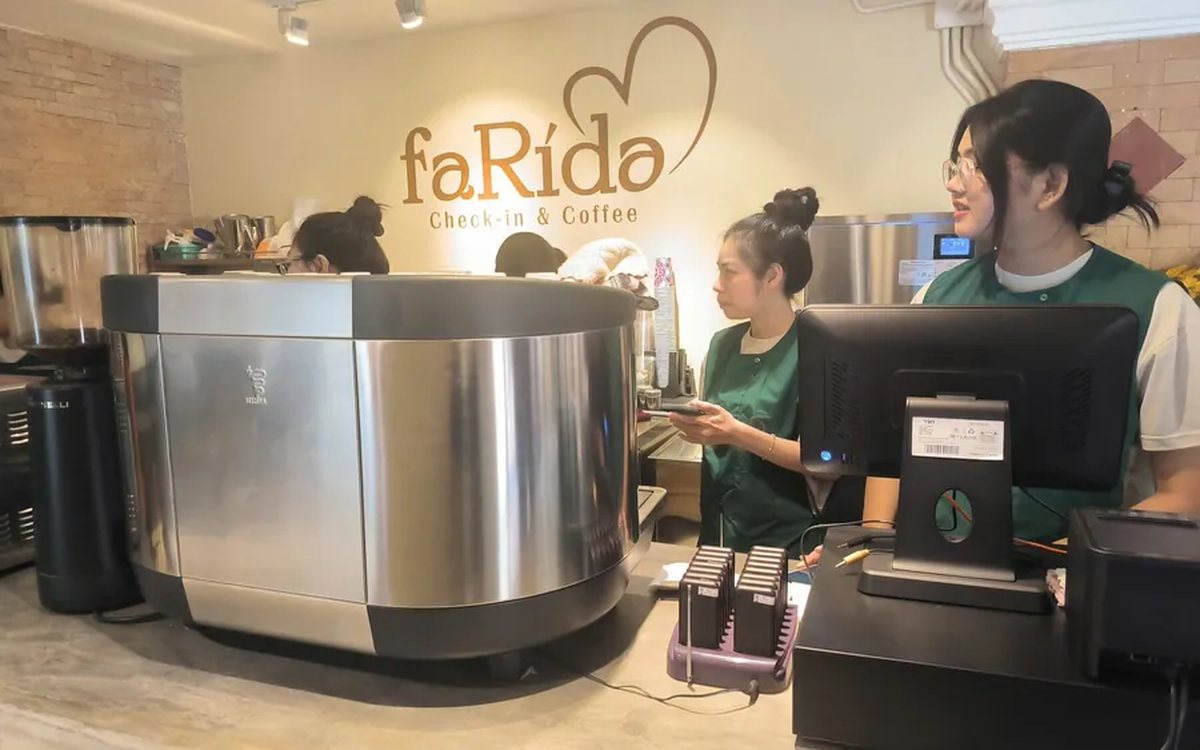
Ordering software for takeaway cafés: fast to-go orders, no mixed-up cups
A takeaway café does not lose time at the espresso machine but in four steps at the counter: typing option notes, customers changing their mind late, waiting to check transfers and handing over the wrong cup. This article shows how ordering software fixes each step: size, sugar, ice and toppings as buttons, a customer display to confirm before the cup is made, a payment QR in the total box and a numbered label for every cup.
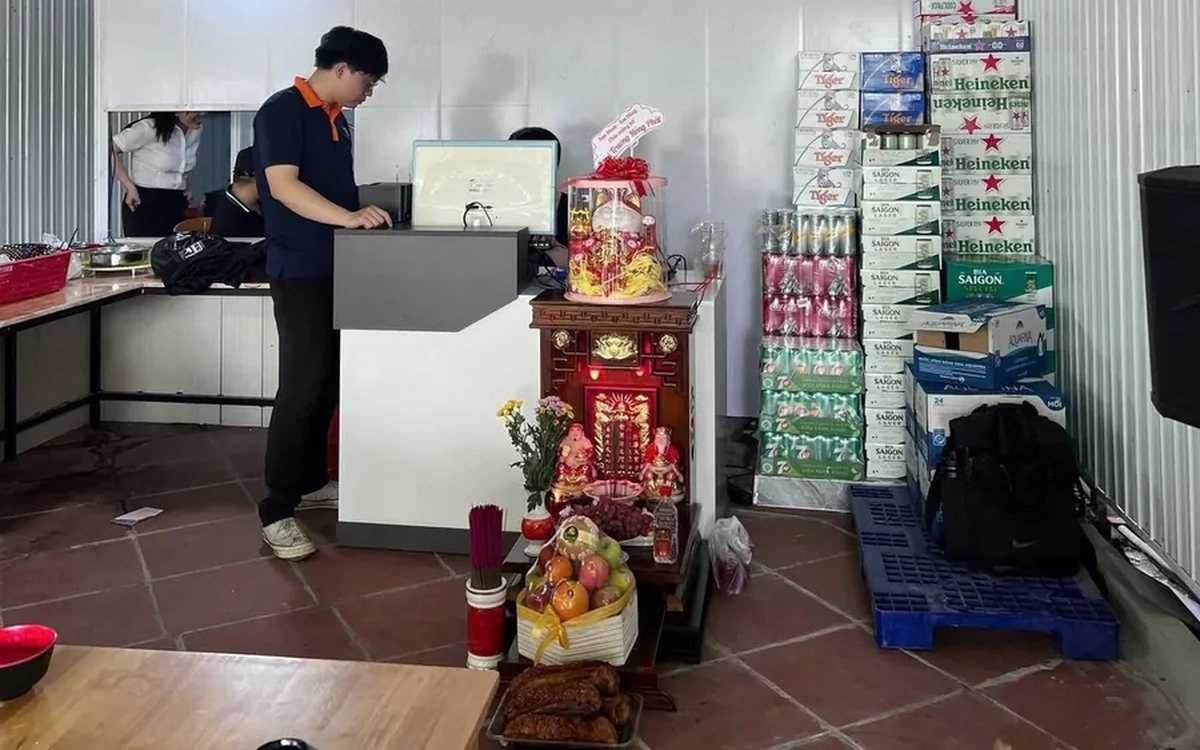
Automatic payment confirmation: customers scan VietQR or MoMo and the order closes itself
At busy times, cashiers lose the most time hunting for bank transfers. This article explains automatic payment confirmation in ordering software for restaurants and cafés: how it differs from a regular transfer QR, what happens from the moment a customer scans VietQR (BIDV), MoMo or VNPay until the order switches to paid, what runs automatically afterwards (receipts, stock deduction, member points) and when the software deliberately does not close the order.

Sharing great billiards shots with customers over Zalo and social media
A clip of a great shot is something players want to keep, and the club gets mentioned every time it is passed on. This guide shows billiards club owners how to make sending highlights to customers over Zalo a counter habit: where clips come from, five steps to pick, preview, download and send, when to let customers scan a QR code to get clips themselves, and how to post on the club's fanpage while keeping customers comfortable.
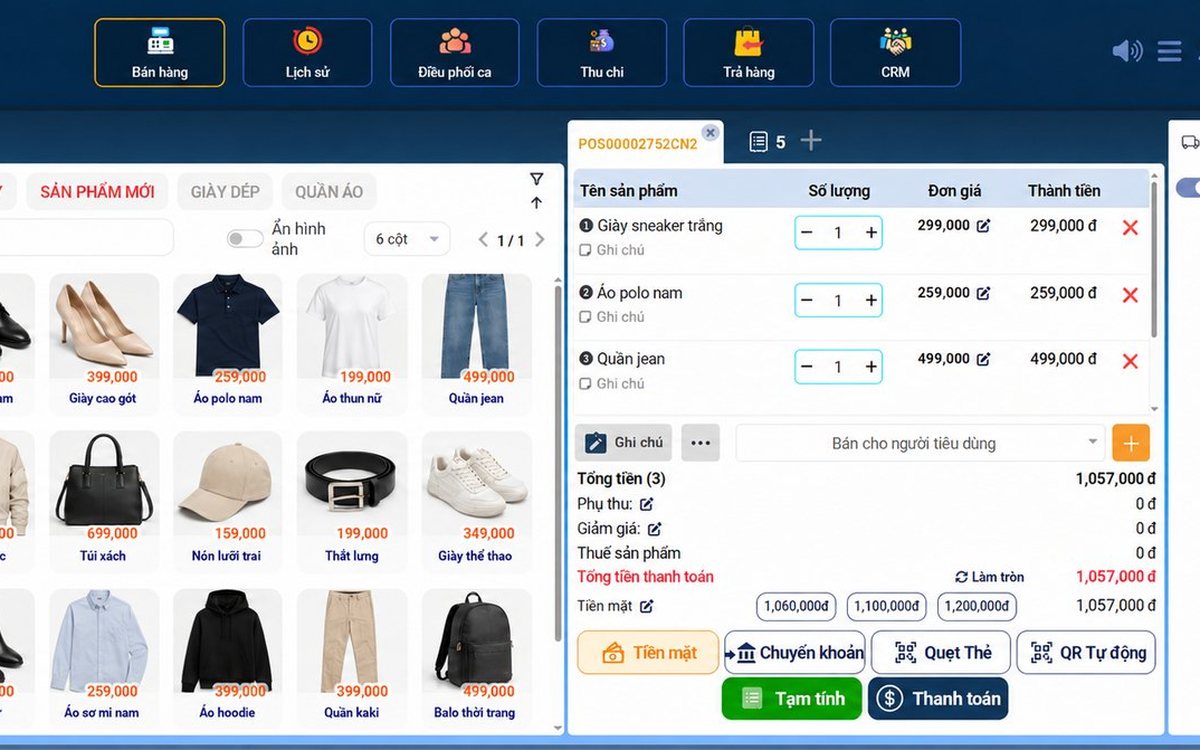
Sales software for household businesses that fits the new rules
From 2026 household businesses no longer pay presumptive tax and declare based on actual revenue; stores with revenue of 1 billion VND/year or more selling directly to consumers must use e-invoices generated from cash registers. This guide summarises the regulatory milestones that affect retail stores and what sales software must do: record every order, issue e-invoices, report by period, keep purchase records and track debts.
Scan a QR code to order at the table: guests order for themselves, the restaurant needs fewer staff
When guests scan a QR code to order at the table, handing out menus, taking orders, running tickets to the kitchen and answering "where is our food?" move to the guest. This guide separates what guests do themselves, what staff still have to do, how to rearrange shifts by table zone, and where things slip when the restaurant runs with fewer people.

Ordering software for wedding banquet restaurants: serving many tables at once without the bill going wrong
A thirty-table wedding banquet usually goes wrong on the extras: drinks added mid-party, tables set up at the last minute, dishes sent to the kitchen twice, deposits remembered by word of mouth. This guide puts the whole banquet into one order from a multi-table booking or by merging tables, takes extra orders by phone, sends only new items to the kitchen, and settles with the host using a provisional bill, surcharges and automatic deposit deduction.
Complete coffee shop management software: how ordering, checkout, inventory and reports connect
Complete coffee shop management software is not a long feature list but ordering, checkout, inventory and reports working together: ring up one cup and the money goes into the right shift, ingredients are deducted by recipe and the end-of-day report updates itself. The article follows one cup through four stages, shows four common break points and the order to switch things on.

Billiards management software for a small new club: what to set up before opening day
For a new billiards club with five to ten tables, where the owner works the counter and starts the clocks, the software needs to do a few things right: set up tables, hourly rates, the menu and QR codes before opening; let players order drinks themselves and have table lights follow playing time; use camera highlights to get the club known; and after the first month read reports by table, debts and shift close.
Retail order management software: counter sales and online orders in one place
Counter orders, phone and Zalo orders, and orders from the store's web shop all go into one order book in Ordersys. Each online order moves through five clear statuses, delivery requires the address, delivery time and delivery person, customers track their own order, and there is no adding up two places at the end of the day.
