



Every retail store has customers who buy now and pay later: the mechanic picking up parts, the restaurant taking goods all week, the regular who pays in two instalments. Selling on credit is easy. The hard part is reconciling at the end of the month: the customer says they paid, the notebook says they did not. Retail software manages customer debt properly when every debt has a source order and a due date, and every payment clearly shows which order it was applied to. Here is the life cycle of a debt in Ordersys.
Four places where a handwritten debt book goes wrong
| Where it goes wrong | Consequence | In Ordersys |
|---|---|---|
| A lump note like "Mr. Tu owes 2 million", not tied to any order | When the customer asks what the debt is for and from which day, nobody can answer | Debt created at the counter is tied to the sales order, with a debt code and an order code |
| No agreed payment date | The debt drags on, and you never know when to remind | Recording a debt requires a due date |
| The customer pays part of it | The payment is applied to the wrong order, and everyone remembers a different balance | The money collected is allocated to each order, and the total must match |
| Debt repayments mixed with the day's sales cash | Cash is short or over at the end of the shift for no clear reason | The shift close slip can print debt incurred and customer repayments during the shift |
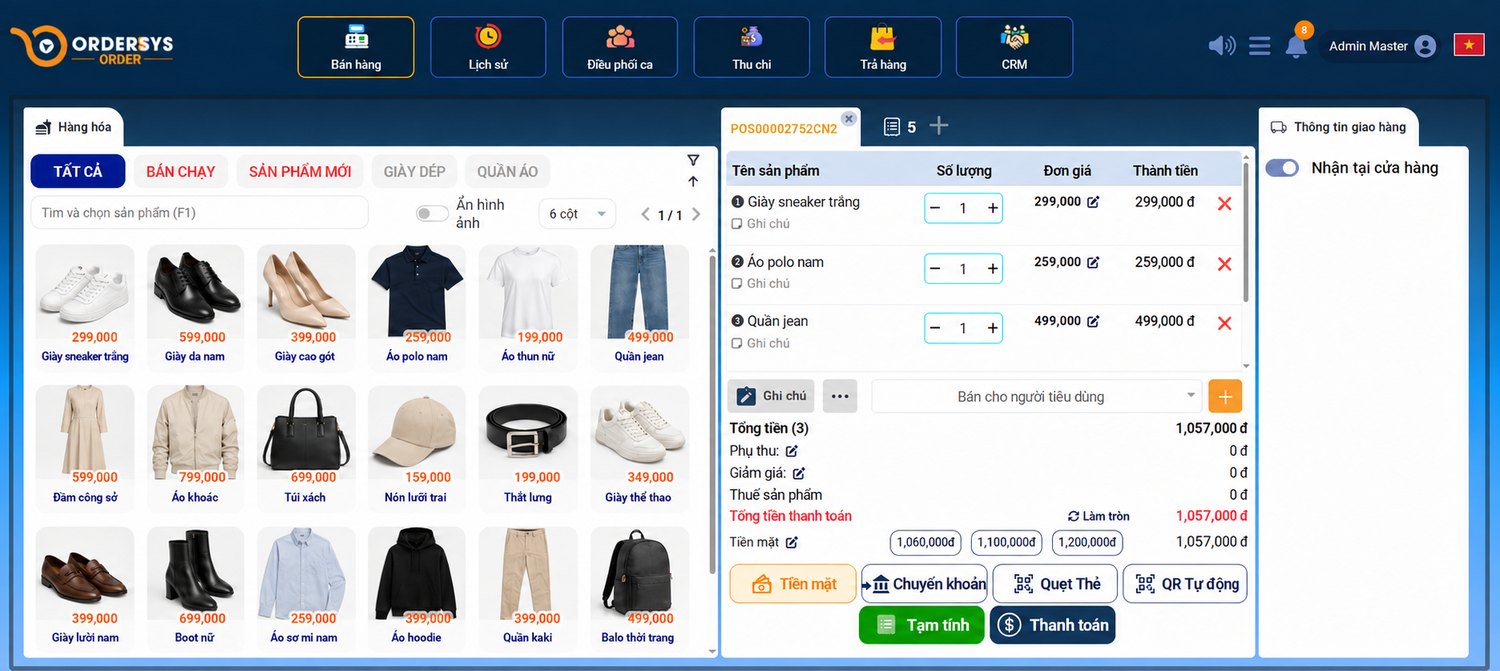
At the sale: the debt belongs to a customer and has a due date
- Select the customer first. Debt can only be used once the order has a customer, so there are no more "ownerless" debts.
- The customer pays part up front. Enter the amount handed over, and the shortfall appears as the "Debt amount".
- Fix the due date. Enter a number of days or pick a due date. It must be after today and cannot be left blank.
- Confirm before saving. The confirmation screen shows the order code, the debt amount and the date the customer promised. The cashier reads it back so the customer confirms it right at the counter.
- Old debt on the receipt. If the customer still owes from before, the software asks whether to print it on the receipt. Choose yes and the receipt gets an extra "Old debt" line, the total due includes the old debt, and the transfer QR code lets the customer type in the amount they want to pay.
Tracking: who is nearly due, who is overdue
The Customer debt screen is already split into four groups: all, nearly due, overdue, and due today. "Nearly due" defaults to the next 7 days and can be changed in the debt due notification setting. Open this group each morning and call ahead; a friendly reminder is much easier than chasing a debt that is already late.
The list can be viewed two ways. By invoice to see each individual debt. By customer to see how much each person owes in total, across how many invoices, how much they have paid, and how much is overdue. Filter further by branch, creator and payment status, then export to Excel when you need to send a statement to the customer.
Collecting: a part payment still knows which order it settles
- Tap collect on the customer's row, enter the amount and choose the method. The software fills in the allocation table automatically: the order with the earliest due date is settled first. You can change it by hand, but the allocated total must equal the amount collected before it will save.
- If the amount collected exceeds the total debt, the software blocks it unless you tick "Save the change to the customer balance": the customer clears the debt in full and the excess becomes a balance used on their next purchase.
- Every payment sits in the payment history; if one was entered wrongly, edit exactly that payment.
Safeguards so debt cannot be worked around
- An order with outstanding debt cannot be returned, and an invoice with debt cannot be edited, so nobody can edit an order to make a debt "disappear".
- The owner decides whether cashiers may manage customer debt, through a parameter in the settings.
- The overview report can show revenue including or excluding debt, so money not yet collected is not mistaken for money already in the till.
Already have an old debt book: enter opening debt
When moving from a notebook to the software, enter the opening debt for each customer, or download the Excel template, fill in the customer code, amount and due date, and upload it in one go. Opening debt can only be entered for customers with no debt in the software yet, so do this on day one. Before entering it, call each customer to agree on the figure, because a wrong opening balance throws off every later collection.
Recording debt, filtering debts that are nearly due, collecting with allocation and debt reports all live in the Ordersys retail management software. Stores can use the 7-day free trial: enter opening debt for a few regulars, make one test sale on credit, collect part of it and look at the allocation table. If you sell wholesale to many trade customers, read grocery stores selling both wholesale and retail: managing debt and prices per customer. For the other direction, when the store owes its suppliers, see recording supplier debt when receiving goods. For setup advice, message Ordersys on Zalo or give us a call.
Sell by barcode, track stock across units, manage debts and see profit every day.
Other news
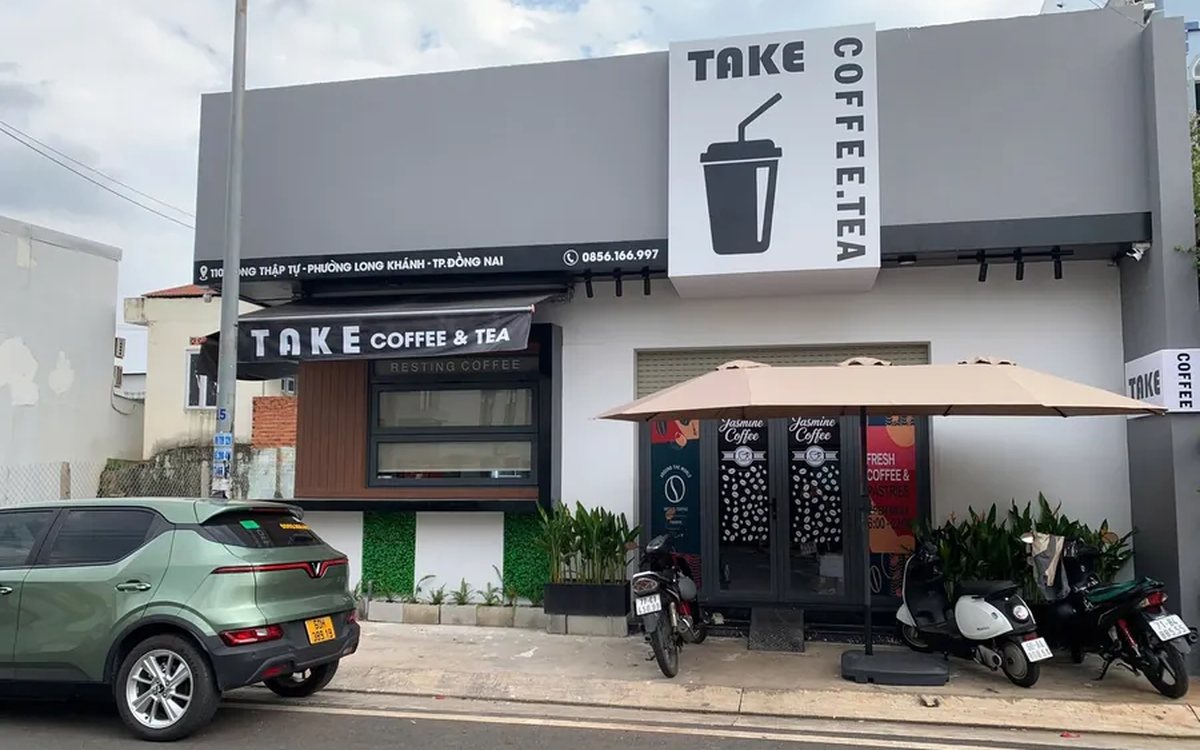
How to manage a cafe or small restaurant remotely by phone: what to check each day, and when
Remote management is not watching staff on camera for hours; it is knowing how many times a day to open your phone and which numbers to read. This article gives a concrete daily schedule for cafe and restaurant owners using Ordersys: end-of-day report, shift close report, orders, stock and multiple branches, plus the numbers worth a call right away and what the venue must record.
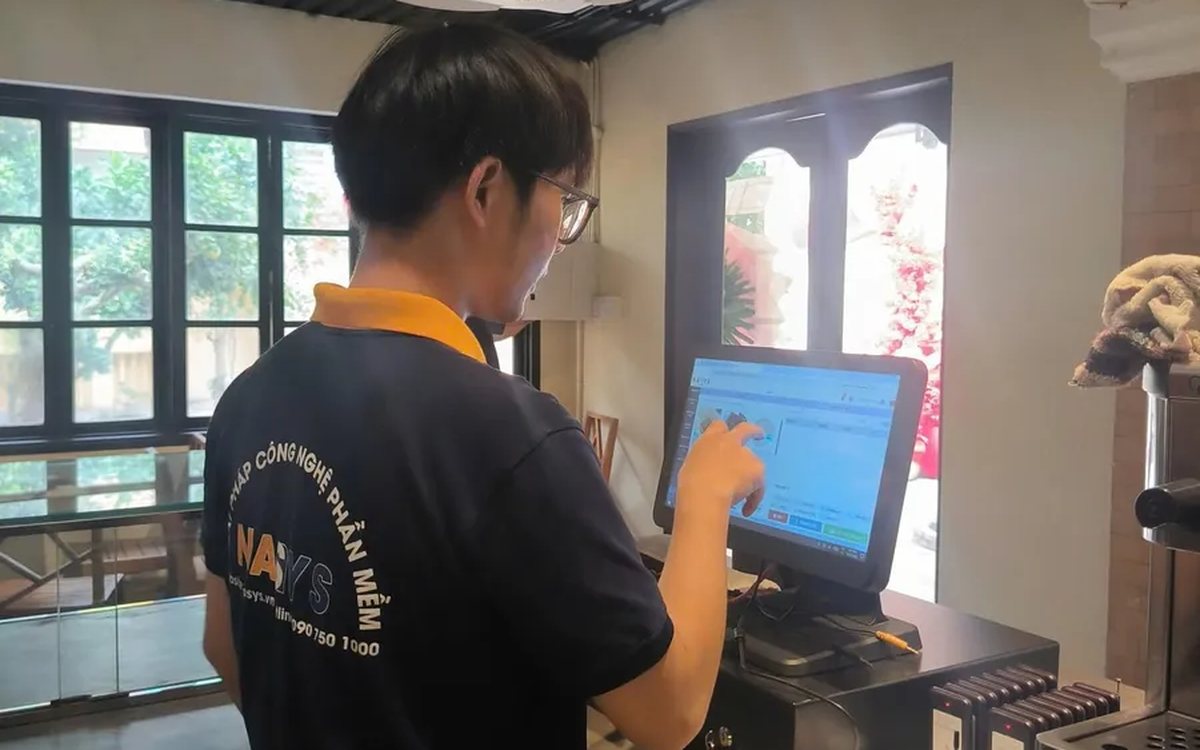
QR payment with automatic reconciliation: reading the shift close report so the money matches
When a venue takes many transfers, the drawer holds only part of the revenue. This article walks through the Ordersys shift close report money stream by money stream: cash, bank transfer, card, auto QR and debt; which lines the software already matched, which the cashier must check item by item, orders paid two ways, orders tapped with the wrong method, and the order of reconciliation before closing the shift.

Billiards management software free trial: what to test in 7 days before buying
Instead of hunting for free billiards management software, trying the full version for 7 days on real tables, at real hours, with real staff gives a surer answer. This article suggests a day-by-day trial plan for a billiards hall: tables and hourly rates, running alongside the paper log, table ordering, shift close, hardware and reports, plus four mistakes that waste the trial and the questions to ask before buying.
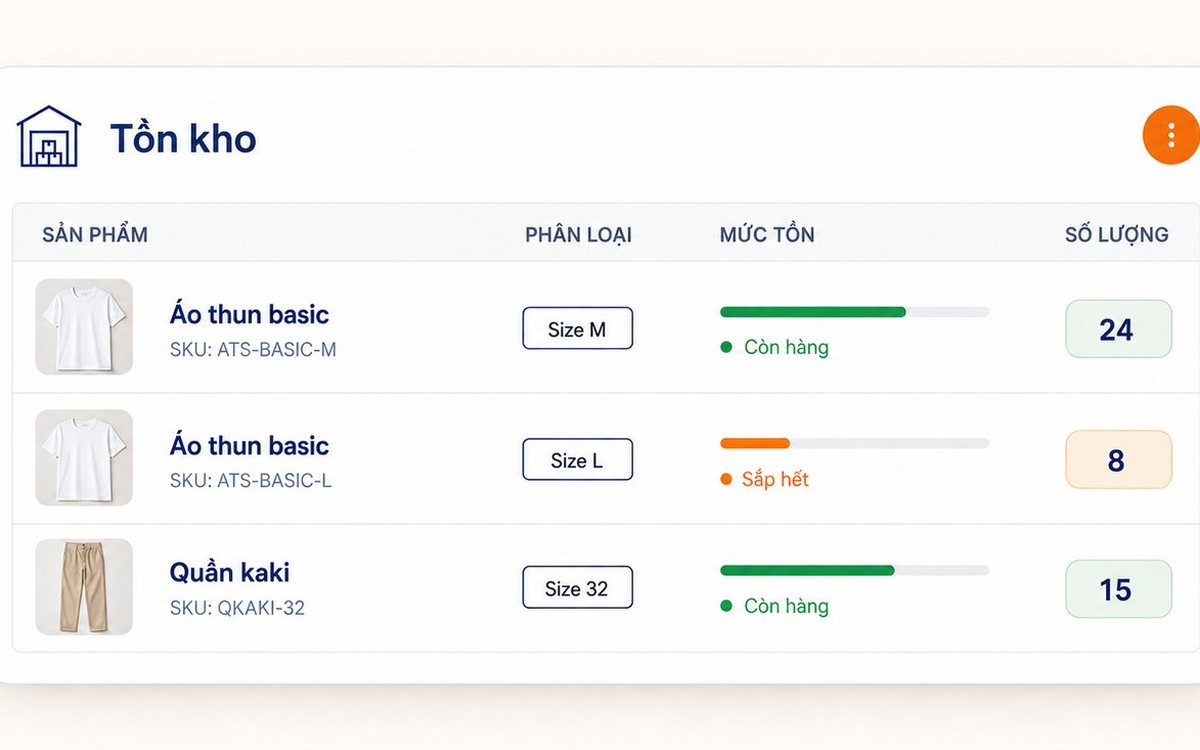
Inventory and stock software for retail stores: every item in and out has a document
When the stock on screen does not match the shelf, the software rarely miscounted; goods left or entered the stockroom without being recorded. This article follows an item through a retail store: opening stock, two-step purchase receipts (incoming first, then received into stock), instant deduction on sale, branch transfer slips, supplier returns, approved adjustments, the In–Out–Balance report and stock limits.
Ordering software for takeaway cafés: fast to-go orders, no mixed-up cups
A takeaway café does not lose time at the espresso machine but in four steps at the counter: typing option notes, customers changing their mind late, waiting to check transfers and handing over the wrong cup. This article shows how ordering software fixes each step: size, sugar, ice and toppings as buttons, a customer display to confirm before the cup is made, a payment QR in the total box and a numbered label for every cup.
Automatic payment confirmation: customers scan VietQR or MoMo and the order closes itself
At busy times, cashiers lose the most time hunting for bank transfers. This article explains automatic payment confirmation in ordering software for restaurants and cafés: how it differs from a regular transfer QR, what happens from the moment a customer scans VietQR (BIDV), MoMo or VNPay until the order switches to paid, what runs automatically afterwards (receipts, stock deduction, member points) and when the software deliberately does not close the order.

Sharing great billiards shots with customers over Zalo and social media
A clip of a great shot is something players want to keep, and the club gets mentioned every time it is passed on. This guide shows billiards club owners how to make sending highlights to customers over Zalo a counter habit: where clips come from, five steps to pick, preview, download and send, when to let customers scan a QR code to get clips themselves, and how to post on the club's fanpage while keeping customers comfortable.
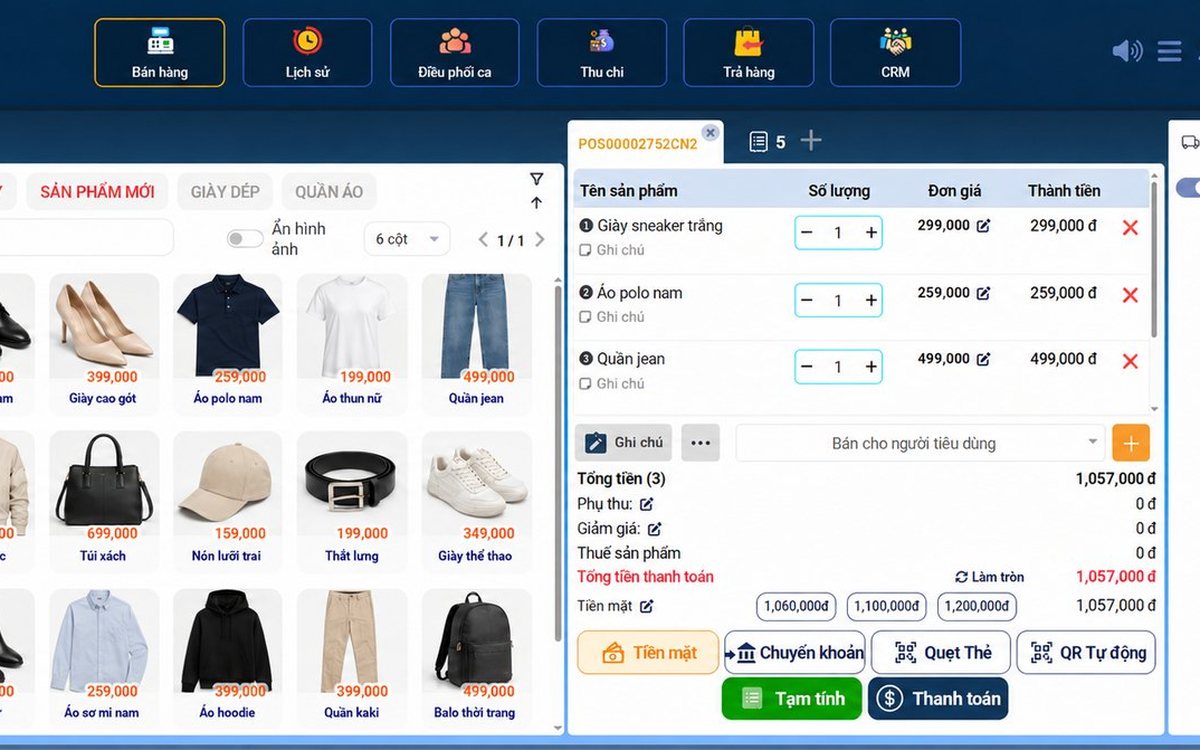
Sales software for household businesses that fits the new rules
From 2026 household businesses no longer pay presumptive tax and declare based on actual revenue; stores with revenue of 1 billion VND/year or more selling directly to consumers must use e-invoices generated from cash registers. This guide summarises the regulatory milestones that affect retail stores and what sales software must do: record every order, issue e-invoices, report by period, keep purchase records and track debts.
Scan a QR code to order at the table: guests order for themselves, the restaurant needs fewer staff
When guests scan a QR code to order at the table, handing out menus, taking orders, running tickets to the kitchen and answering "where is our food?" move to the guest. This guide separates what guests do themselves, what staff still have to do, how to rearrange shifts by table zone, and where things slip when the restaurant runs with fewer people.
