



The club has a camera on every table, scoring is switched on, and the first question when opening the video cut page is usually: how long should a highlight clip be, and which cut style shows the whole shot? In the Ordersys billiards management software, highlights can be cut in two ways: around the scoring mark or by segment. Whichever you choose, every match also keeps a full match segment for replay. This article explains each style, when to use it and what to adjust before settling on one for the whole club.
Matches, marks and highlights on the video cut page
These three ideas decide how a clip is cut:
- A match runs from pressing Start on the scoreboard until End or Abandon. Each match is a bold row in the list.
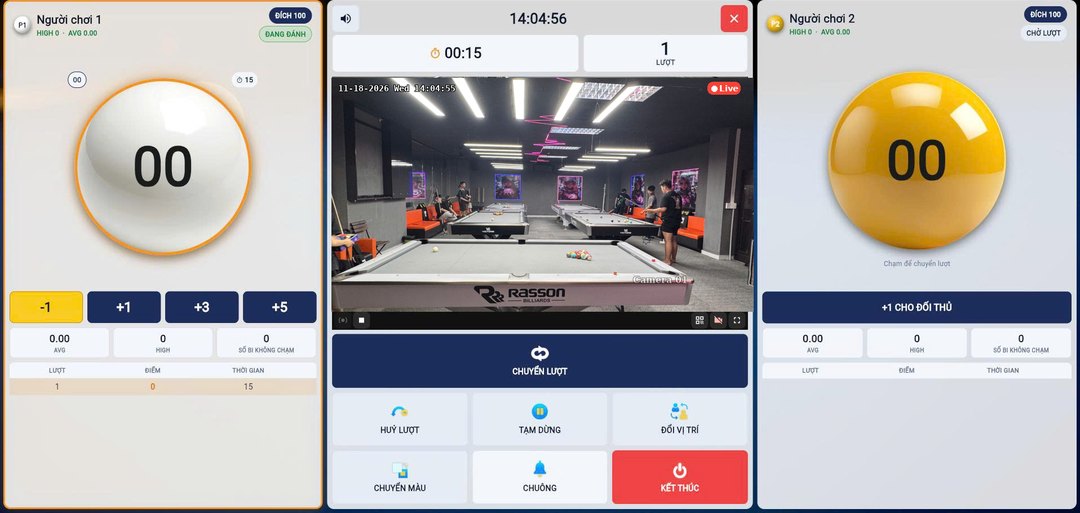
- A mark is each press of plus or minus points on the scoreboard. The mark belongs to the camera of that exact table at the moment of pressing, so a club with many tables never mixes up footage.
- A highlight is the clip cut from each mark, listed right under its match row. The label shows the player name, the points just added, the score and the time, so you can tell at a glance whose shot it is.
The cut style only changes how long each highlight is. The full match row and the position of the marks stay the same.
Style 1 — Around the scoring mark (default)
The clip takes a stretch before the mark and a stretch after the mark, measured in seconds. For example, 10 seconds before and 10 seconds after gives highlights of about 20 seconds each, all the same length. The before and after seconds apply to every camera in the club, and the owner sets them once in the settings.
This style suits clubs that want short, tidy clips to send to customers on Zalo or post on the fan page. The number to watch is the "before" seconds: on a slow shot with a long aim, a "before" that is too short starts the clip after the ball is already rolling, and the customer sees a cut-off shot.
Style 2 — By segment
The clip starts from the previous scoring press (or from pressing Start if this is the first point of the match) and runs to this press, plus a few seconds after. In other words, the highlight is the whole stretch of play leading to the point just scored, with nothing skipped between two scoring presses.
This style suits players who want to replay the whole inning, not just the last shot, or clubs that often run friendly matches and small tournaments. The trade-off is uneven length: two points scored close together give a short clip, while a long, tight inning can give a clip several minutes long.
Quick comparison of the two cut styles
| Criterion | Around the scoring mark | By segment |
|---|---|---|
| Clip starts from | The mark minus the "before" seconds | The previous scoring press, or the match Start |
| Length | Even, set by the club | Varies with the gap between two scoring presses |
| Needs setting | Seconds before and after the mark | No length to set |
| Best for | Sending to customers, social media, short clips | Replaying a whole inning, friendly matches, small tournaments |
| Watch out for | A "before" that is too short loses the aiming part | Long innings make long clips that are heavier to download |
The full match: always there
Whichever style you choose, the bold row of each match is still one segment from Start to End or Abandon. Press play and the whole match plays straight in the video frame, with no file to wait for; press download and the whole match is saved. A match still in progress runs to the end of the recorded video. Use the full match when a customer wants to keep the whole game, when the club reviews a tournament match, or when two players argue about a point and need the full context. Clips for single marks can be opened as described in cutting highlights from the camera at each scoring point.
Set the camera delay before choosing a cut style
The live picture usually runs a few seconds behind reality, and each camera has a different delay. Staff watch the live picture and then press the score, so the real shot happened earlier than the press by exactly that delay. In the settings of the video cut page, the club enters a delay for each camera channel and the page subtracts it when cutting. A Try with the latest segment button shows the result right away.
Set the delay first, then judge the cut style. If clips are off because the delay is wrong, changing the cut style will not fix it.
Tips for club owners
- Not sure? Keep the default, around the mark, run it for a week, open a few clips to see whether shots get cut off, then raise or lower the before and after seconds.
- Clubs that mostly send clips to customers and post on the fan page: around the mark, short clips that are easy to send. For the counter routine, see sharing great billiards shots with customers on Zalo.
- Clubs with many long-playing customers or regular friendly matches: by segment, so players can watch the whole inning.
- Pressed a point by mistake: hide that mark from the list. The original video is not deleted, and other matches and highlights stay as they are.
A few limits to know up front
- The software does not recognise which shot is beautiful. Highlights are cut by scoring marks. A table that does not press scores has no highlights, only camera video.
- The mark list only keeps recent matches (about 48 hours by default). Download any shot you want to keep for longer early on.
- Video lives on the recorder at the club. The recorder must be on and have free space for clips to exist.
See the Ordersys billiards management software
Scoring, cutting highlights from each table's camera with two cut styles, and watching and downloading full matches are all part of the Ordersys billiards club management software, in the same system as table timing, table-side ordering and revenue reports. Read more about cutting billiards highlights from the camera at each scoring point and matching orders against table video to stop losses. Sign up for a 7-day free trial, or message us on Zalo or call 090 750 1000 for advice based on your number of tables.
Ordersys times every table automatically, switches table lights, takes drink orders at the table and reports revenue per shift.
Other news
Free trial sales software for retail stores: what to prepare and what to test in 7 days
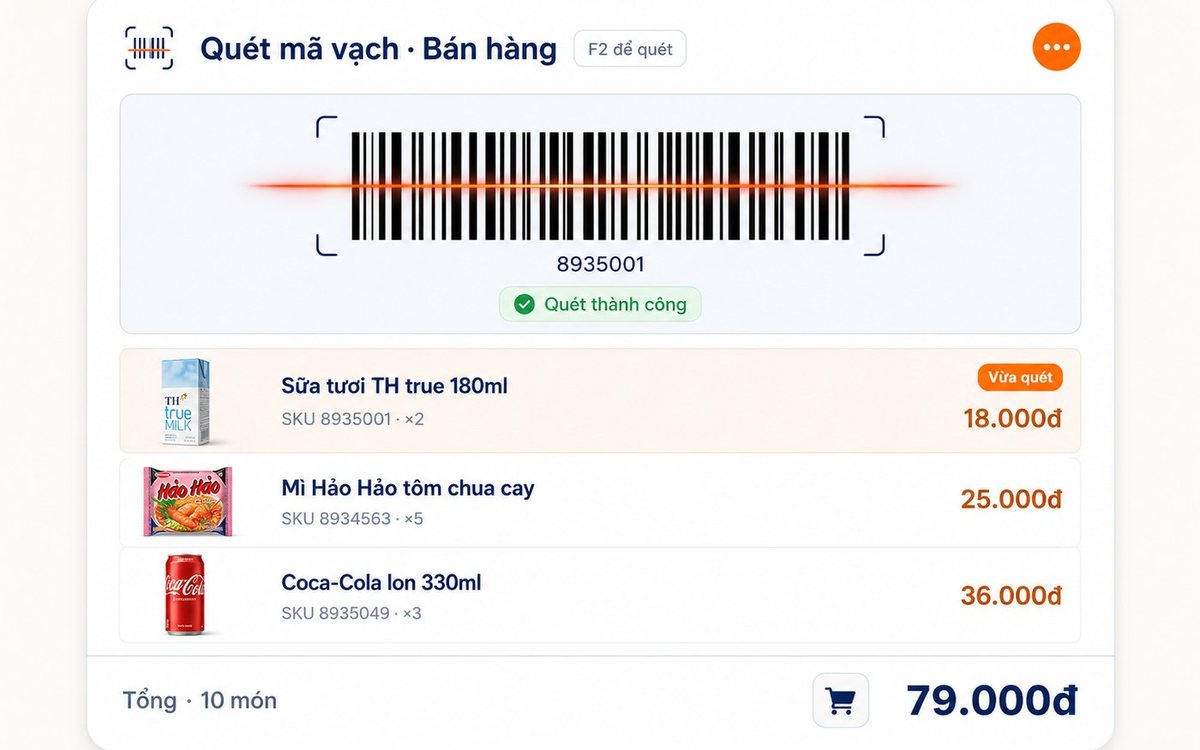
There are two kinds of "free" sales software: free for the long term with limits, and a full trial before you pay. Ordersys offers a 7-day trial with every feature, no card and no setup fee. This guide covers preparing your data from Excel before day one, six tasks to try with your store's real goods and four numbers to decide on when the trial ends.
Retail software that manages customer debt properly: credit with due dates, part payments that never mix up orders
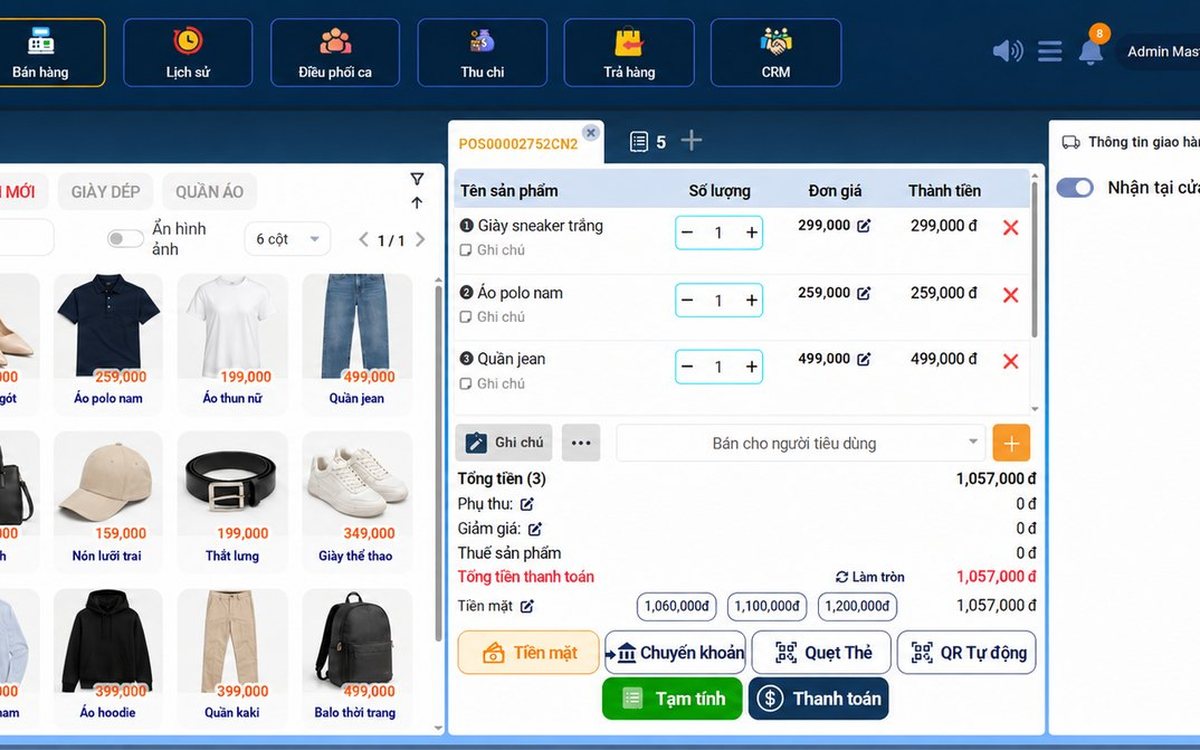
A handwritten debt book goes wrong in four places: debts not tied to orders, no due date, part payments applied to the wrong order, and repayments mixed with sales cash. This article follows the life of a debt in Ordersys: credit tied to a customer and a due date, filters for nearly due and overdue debts, collections allocated to the earliest due order first, safeguards against workarounds, and opening debt imported from Excel.
How to manage a cafe or small restaurant remotely by phone: what to check each day, and when
Remote management is not watching staff on camera for hours; it is knowing how many times a day to open your phone and which numbers to read. This article gives a concrete daily schedule for cafe and restaurant owners using Ordersys: end-of-day report, shift close report, orders, stock and multiple branches, plus the numbers worth a call right away and what the venue must record.
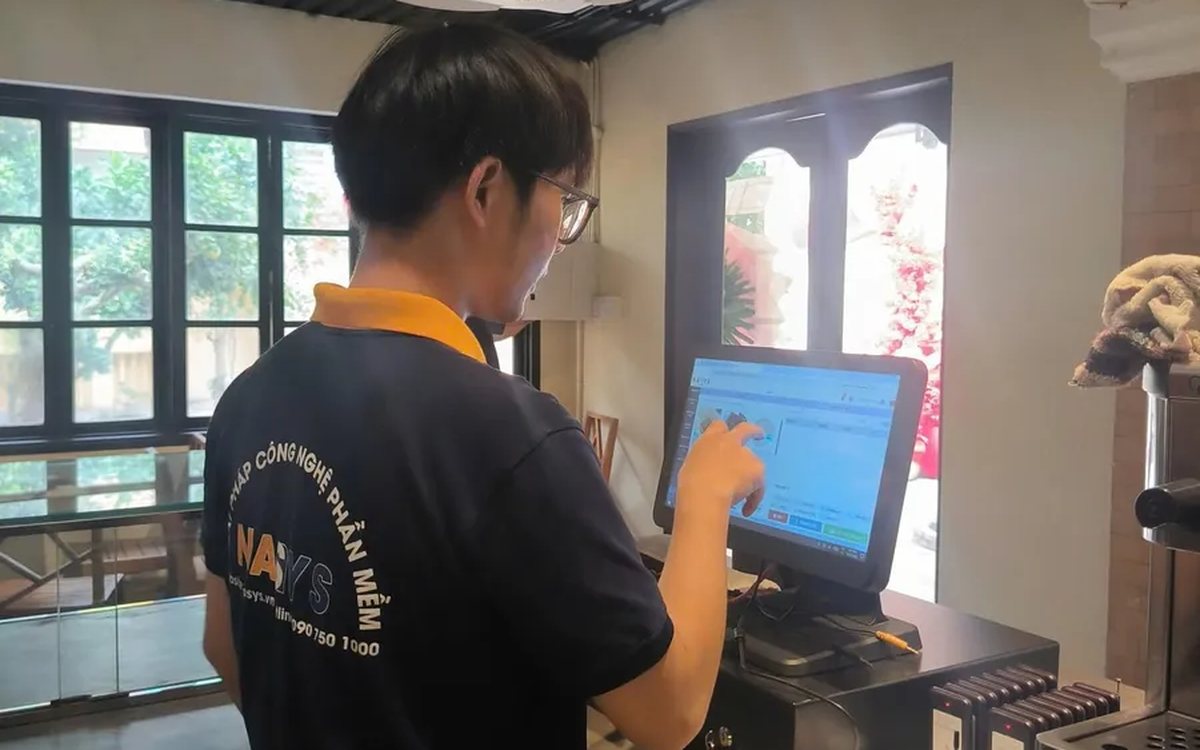
QR payment with automatic reconciliation: reading the shift close report so the money matches
When a venue takes many transfers, the drawer holds only part of the revenue. This article walks through the Ordersys shift close report money stream by money stream: cash, bank transfer, card, auto QR and debt; which lines the software already matched, which the cashier must check item by item, orders paid two ways, orders tapped with the wrong method, and the order of reconciliation before closing the shift.

Billiards management software free trial: what to test in 7 days before buying
Instead of hunting for free billiards management software, trying the full version for 7 days on real tables, at real hours, with real staff gives a surer answer. This article suggests a day-by-day trial plan for a billiards hall: tables and hourly rates, running alongside the paper log, table ordering, shift close, hardware and reports, plus four mistakes that waste the trial and the questions to ask before buying.
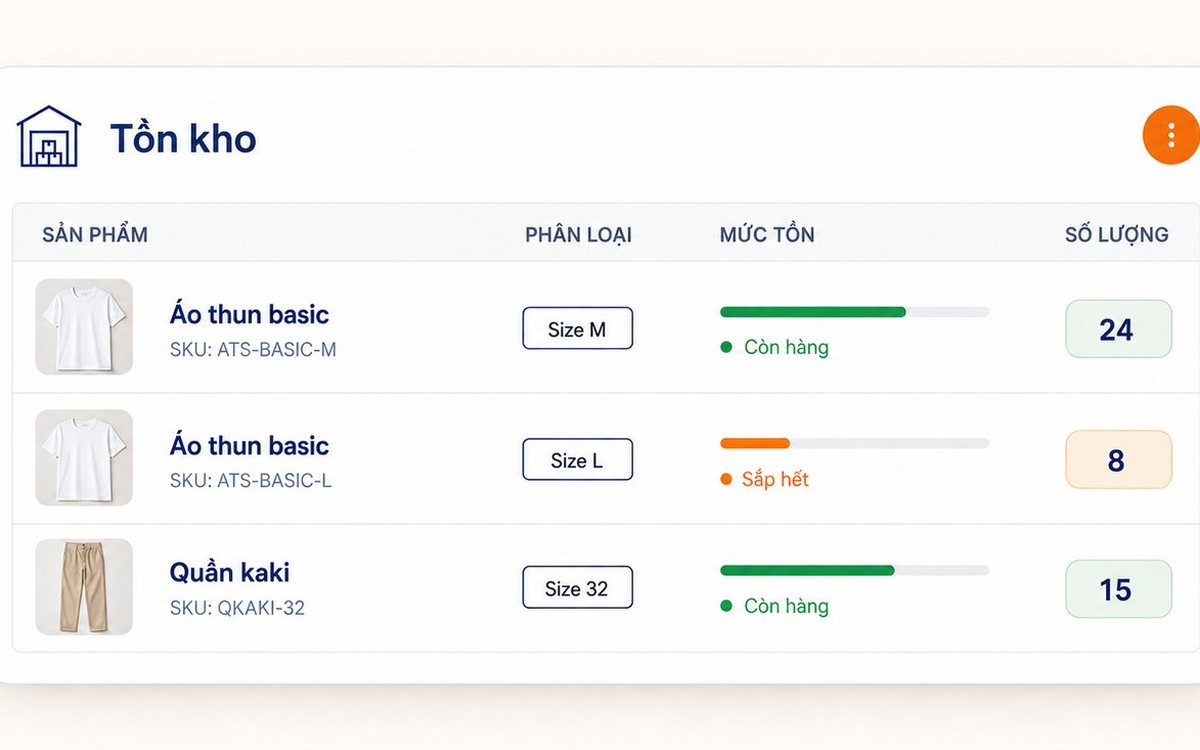
Inventory and stock software for retail stores: every item in and out has a document
When the stock on screen does not match the shelf, the software rarely miscounted; goods left or entered the stockroom without being recorded. This article follows an item through a retail store: opening stock, two-step purchase receipts (incoming first, then received into stock), instant deduction on sale, branch transfer slips, supplier returns, approved adjustments, the In–Out–Balance report and stock limits.
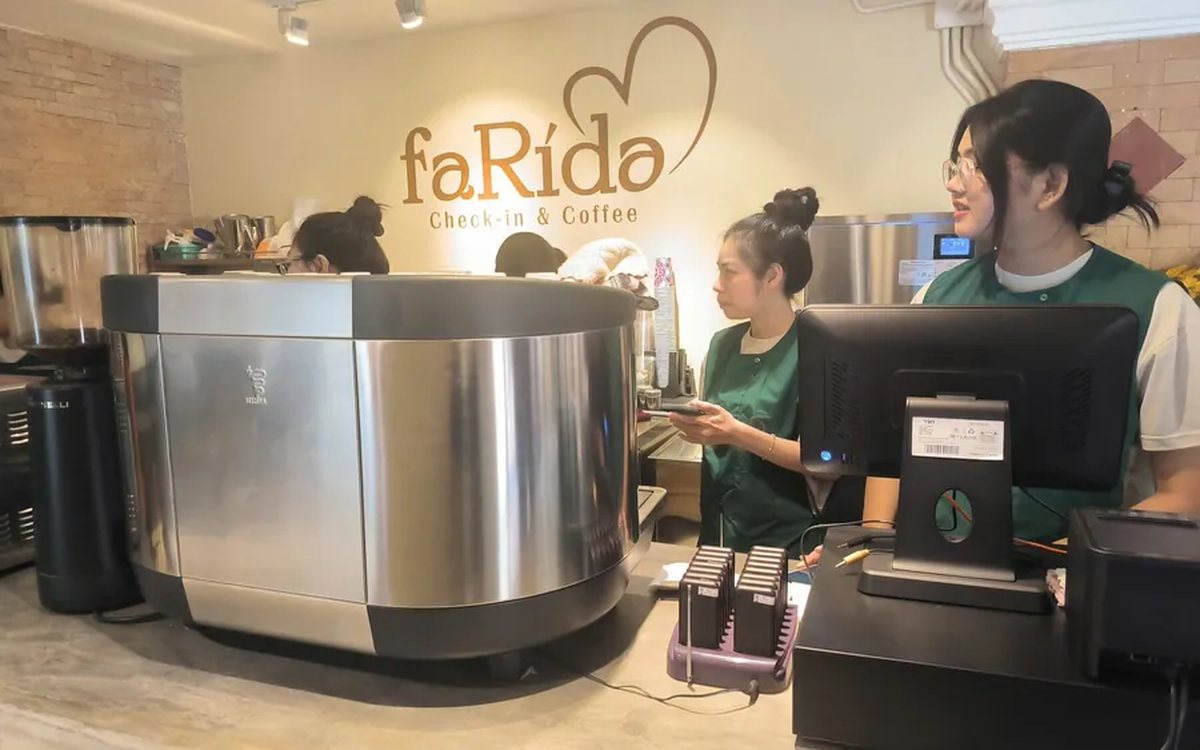
Ordering software for takeaway cafés: fast to-go orders, no mixed-up cups
A takeaway café does not lose time at the espresso machine but in four steps at the counter: typing option notes, customers changing their mind late, waiting to check transfers and handing over the wrong cup. This article shows how ordering software fixes each step: size, sugar, ice and toppings as buttons, a customer display to confirm before the cup is made, a payment QR in the total box and a numbered label for every cup.
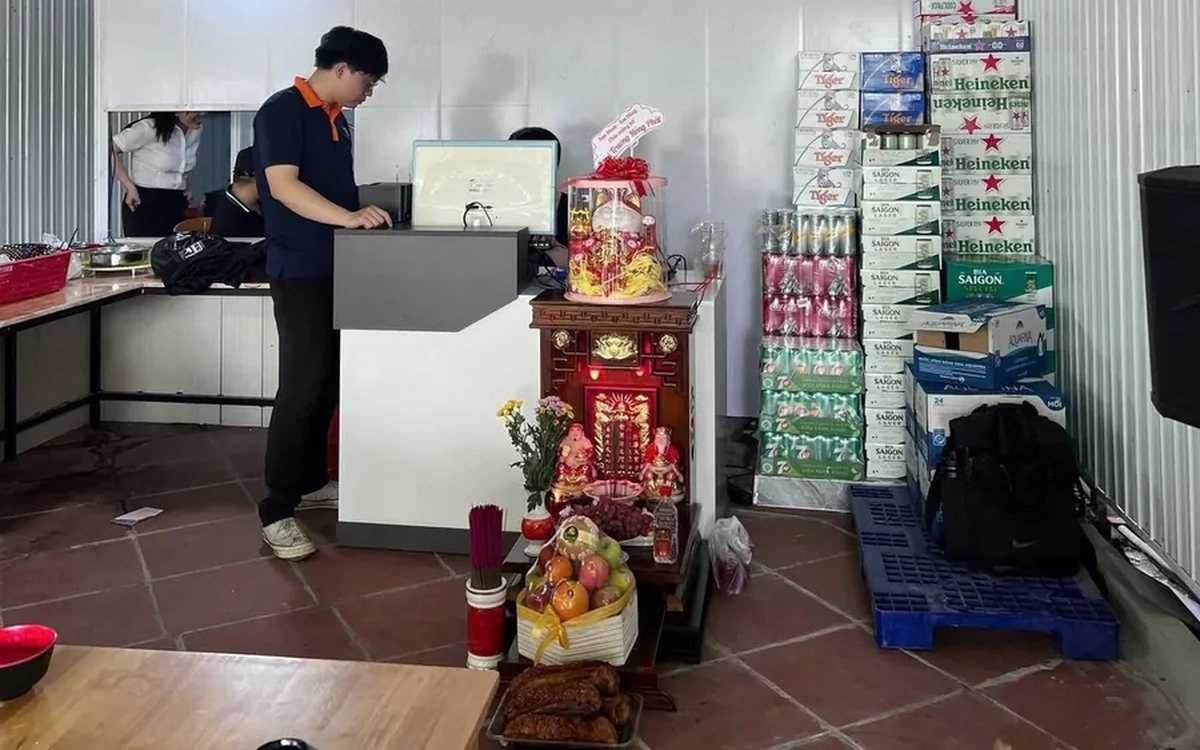
Automatic payment confirmation: customers scan VietQR or MoMo and the order closes itself
At busy times, cashiers lose the most time hunting for bank transfers. This article explains automatic payment confirmation in ordering software for restaurants and cafés: how it differs from a regular transfer QR, what happens from the moment a customer scans VietQR (BIDV), MoMo or VNPay until the order switches to paid, what runs automatically afterwards (receipts, stock deduction, member points) and when the software deliberately does not close the order.
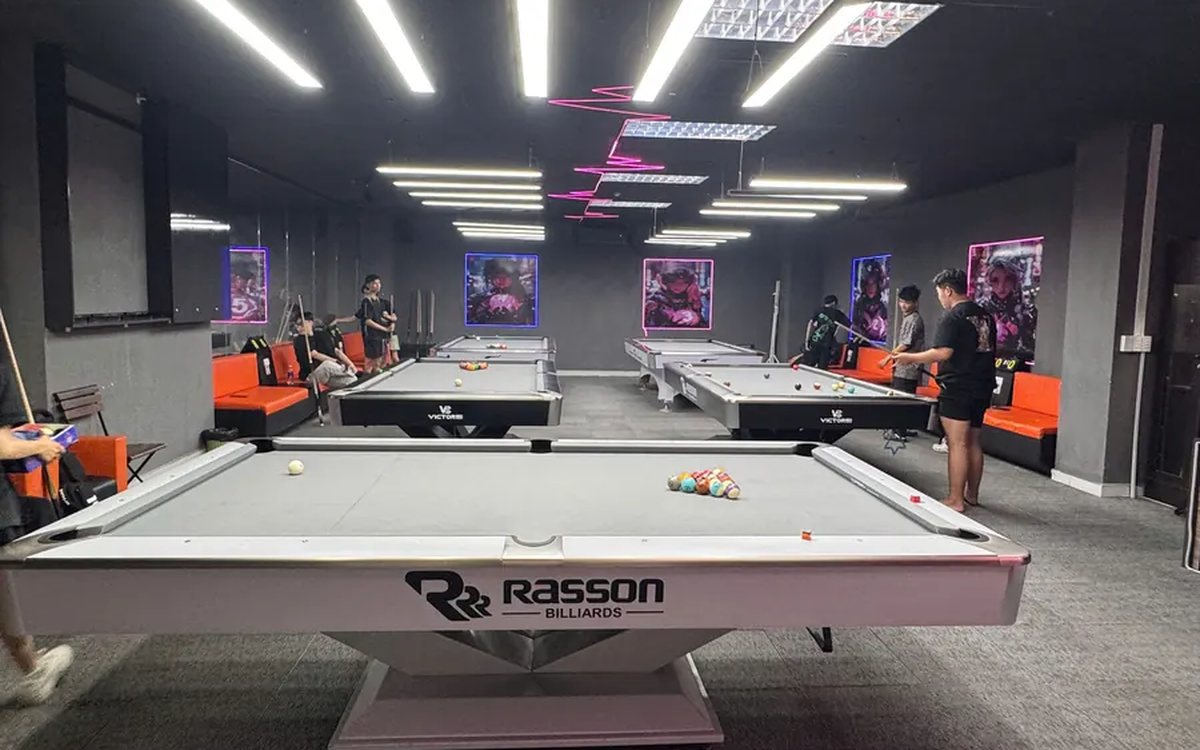
Sharing great billiards shots with customers over Zalo and social media
A clip of a great shot is something players want to keep, and the club gets mentioned every time it is passed on. This guide shows billiards club owners how to make sending highlights to customers over Zalo a counter habit: where clips come from, five steps to pick, preview, download and send, when to let customers scan a QR code to get clips themselves, and how to post on the club's fanpage while keeping customers comfortable.
