The delivery arrives at nine in the morning: forty new item codes, most of them pre-weighed or shop-packed goods, so there is not a single bar printed on the packaging. The old way is to write the price on the lid with a marker, or print one A4 sheet and tape it to the shelf. By noon a customer asks the price and staff have to open the computer to look it up. By evening, at stock count, nobody can tell which box came in with which delivery.
All you really need is one scannable label on each item. But forty codes, a few dozen labels each, means printing in batches — not making them one at a time.
A retail label has three parts
In the Ordersys retail software, a printed label carries the item name, the price and the barcode — or a QR code, if you pick QR labels instead of barcode labels. Those three parts serve three different people: the customer reads the price, staff read the name when stocking shelves, the scanner reads the code.
The code is the one part that cannot be wrong. If it does not scan, the cashier is back to typing by hand and the label is useless.
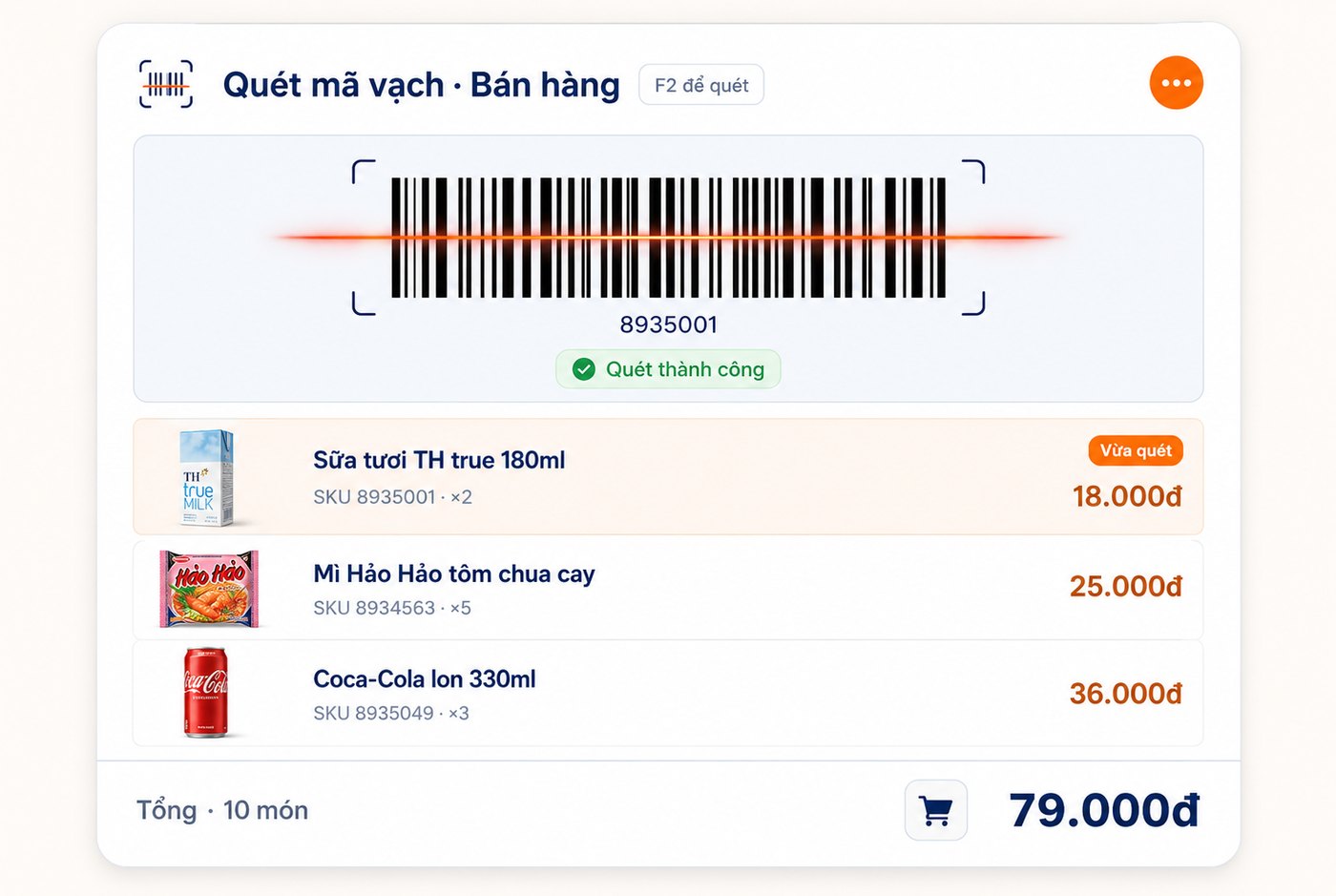
The label screen: pick items, pick the size, test-print, then run the batch
The label screen is split in two. On the right is the item list where you tick the codes to print, with the total number of products on hand shown at the top. On the left is the label setup:
| Setting | What you choose |
|---|---|
| Label type | Barcode label or QR code label |
| Paper size (mm) | Enter width × height, 50 × 30 by default — match the roll actually loaded in the label printer |
| Code standard | Code 128, EAN-13 or UPC-A |
| Labels per item | Set one figure for the whole batch, or set it separately for each code |
| Preview | A preview box showing the label before you hit print |
Those three code standards are not a cosmetic choice. Code 128 accepts both letters and digits, so it suits codes the shop assigns itself. EAN-13 is the standard for industrially packaged goods: exactly 13 digits, and they must be valid — the software checks at print time, and a code that fails the check digit is reported rather than printed blindly for you to discover with a scanner in hand. UPC-A covers goods imported under the North American standard.
The red warning line on that screen says one thing every shop has ignored at least once: print one or two test labels first. Load a 50×30 roll but enter 30×50 and the whole roll comes out sideways with the text running off the edge.
Printing labels right at goods receipt
The second way is handier for an incoming delivery: print straight from the purchase slip. The software takes the item list from the slip, sets the label count from the quantity received on each line, you adjust whichever figure needs it, then print the whole slip in one go. On the label you choose what to show or hide: the digits under the bars, the selling price, the unit of measure, the currency. If you want it printed at a copy shop, export to PDF.
This saves exactly the most tedious part — sitting down to work out how many labels each code needs. Twenty boxes in, twenty labels out.
Three mistakes that waste a whole batch of labels
- Label size does not match the actual paper. A label printer does not stretch or shrink to fit. The common roll formats are the 2-up 30×50mm type and the 3-up 30×150mm type — check the edge of the roll before entering the figures.
- A code standard your scanner cannot read. Older scanners read one-dimensional barcodes only, not QR. If you pick QR labels, make sure the device at the counter can read them.
- Changing the price without reprinting the labels. A label is a snapshot of the price at the moment it was printed. Change the price in the software and the old labels on the shelf become wrong — the customer sees one figure, the till shows another.
In short: labels are the cheapest step, and everything else comes after them
Accurate stock counts, accurate profit reports, fast checkout — all three rest on one condition: every item has a code that scans. Labelling is a one-off job for each delivery, but it decides whether the rest of the work runs at all.
The label screen, printing from purchase slips and item code management all sit inside the Ordersys retail software, in the same system as stock and reporting. Shops that want to try it get a free 7-day trial — enter a few codes, print one sheet of labels and scan them to see straight away whether it works.
Read more: Barcodes for retail shops: print your own or use the manufacturer's? to decide which codes you assign yourself and which you scan straight off the packaging; and Retail stock counts: 5 steps and why the numbers drift if you are preparing your first count after labelling.
Sell by barcode, track stock across units, manage debts and see profit every day.
Other news

Food and drink combos per room for karaoke venues
A fixed set or a combo the guest picks from, ordered as one line instead of five, with kitchen and bar receiving the right items and the combo landing on the same bill as the room time charge.

Grouping VIP customers so offers reach the right people
Total purchases, remaining points, tier, customer group, outstanding debt, date of birth — the columns already in your customer list are enough to split groups. Tiers handle regulars; vouchers handle the ones who stopped coming.