



Membership tiers at billiards clubs often go wrong because of one thing: a customer pays for table time with points and then finds they have dropped a tier, losing the discount they just enjoyed. The customer feels punished for being a regular, and the cashier has to explain. In Ordersys billiards club management software, the tier is not based on the wallet balance but on a separate number called rank points. This article explains how rank points are calculated, where customers see their tier on the ORDERSYS CLUB member page, and how the club sets its tier thresholds.
How rank points differ from the wallet balance
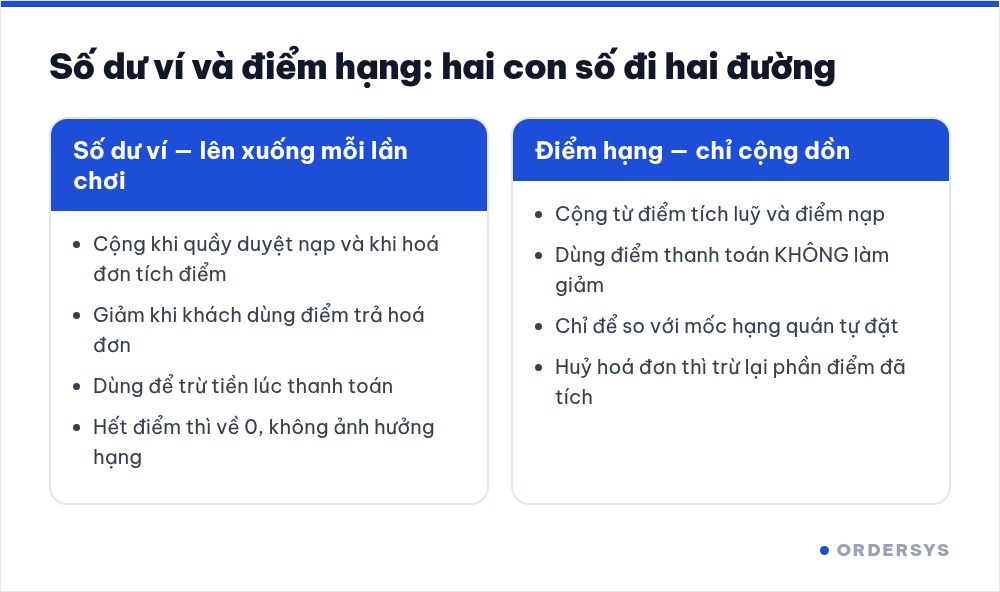
The Membership tier screen in the app sums up the rule in one line: "Rank points add up from earned and topped-up points; paying with points never lowers your rank." In other words, a customer's account holds two numbers that move in different ways:
| Wallet balance (available points) | Rank points | |
|---|---|---|
| Goes up when | The counter approves a top-up, or a bill earns points | The same two moments |
| Goes down when | The customer uses points to pay a bill | Never goes down when points are used |
| Used for | Deducting money at payment | Comparing against the club's tier thresholds |
A customer's tier is the highest threshold their rank points have reached. If the club edits a threshold, tiers are recalculated against the new value automatically, with no need to re-rank anyone by hand. The only exception is when a bill is cancelled or reopened: the points that bill earned are taken back out of rank points, so nobody moves up a tier on the strength of a bill that no longer exists.
Where customers see their tier
The home screen of the member app shows the current tier right on the player card, with a line reading "… more to reach …" and a View membership tier button. Opening the Membership tier screen (subtitle "Based on your accumulated rank points"), the customer sees:
- A Your privileges block: the tier they hold and its perk, for example in the form "…% off table time every visit".
- Their current Rank points and a progress bar "… more to reach …"; at the top tier it shows "You're at the highest tier."
- A list of every tier the club has switched on, one line each in the form "From … · …% off", with the tier held marked Current, tiers already passed marked Reached, and higher tiers showing how many points are still needed.
When the counter approves a top-up that pushes rank points past a threshold, the customer receives the message "Congratulations, you have moved up a tier" with the new discount, and tapping it opens the Membership tier screen directly. If the club has not set any tiers, the app shows "The club has not set up membership tiers yet.", because tiers are optional. The full member page, from the player card to opening a table and ordering, is covered in the billiards club member app: QR player card, points wallet and tier perks.
Where the club sets up tiers
In the management side, membership tier management sits on the Discount screen. Each tier has three fields: the tier name, the discount rate (%) and the points, meaning the rank-point threshold to enter that tier. Each tier has its own on/off switch. A tier that members currently hold cannot be deleted; the software warns that a tier cannot be deleted while a member has it.
On the same screen, the club chooses what the tier discount applies to, one of three options: the whole order, playing time or sales (food and drinks). That choice applies to every tier, and the customer's app shows the right scope (the whole bill, table time, or food and drinks) next to the discount rate. The Auto discount switch decides whether bills deduct the tier discount automatically.
How the tier discount is worked out at payment
When the cashier attaches a member to the bill, the software looks up the tier from the customer's rank points, multiplies the tier rate by the part of the bill the club chose, rounds it using the club's own money rounding setting, and deducts it from the bill. On the app's Payment page the customer sees a "Tier discount (…% off …)" line just below table time, ahead of food and drinks and vouchers. This is still an estimate; the app states clearly that running table time is "an estimate before membership tier perks, promotions or vouchers — the cashier finalizes it at payment". For the order in which wallet points are deducted, see a billiards club member's points wallet: bonus points first, top-up points second.
Setting tier thresholds: a few things to work out first
- Top-up points count toward rank points too. A customer who tops up a large amount can move up a tier the same day. If you want tiers to reflect how often people come in rather than just how much they top up, set thresholds above your club's typical top-up amount.
- The first tier should be reachable early. Customers see the "… more to reach …" line every time they open the app; if the gap is too wide, that line becomes meaningless. How to split tiers and rewards so customers feel close is covered in player membership cards: how to bring customers back to your billiards club.
- Pick a discount scope that fits your margins. For customers who order a lot of drinks, a discount on the whole order costs far more than one on playing time; test it on a few real bills before choosing.
- Remind cashiers to attach the right member. A bill with no member attached gets no tier discount and adds no rank points.
The discount rate and point threshold for each tier are set by each club. For the top-up flow, see topping up a billiards club member card: points reach the wallet only after the counter approves.
See Ordersys billiards management software
Membership tiers are part of Ordersys billiards club management software: the club sets tiers once in the management side, the cashier sees the discount at payment, and customers see their tier and how far they are from the next one on their phone. Sign up for a free 7-day trial, or message us on Zalo or call 090 750 1000 for help setting up tiers for your regulars.
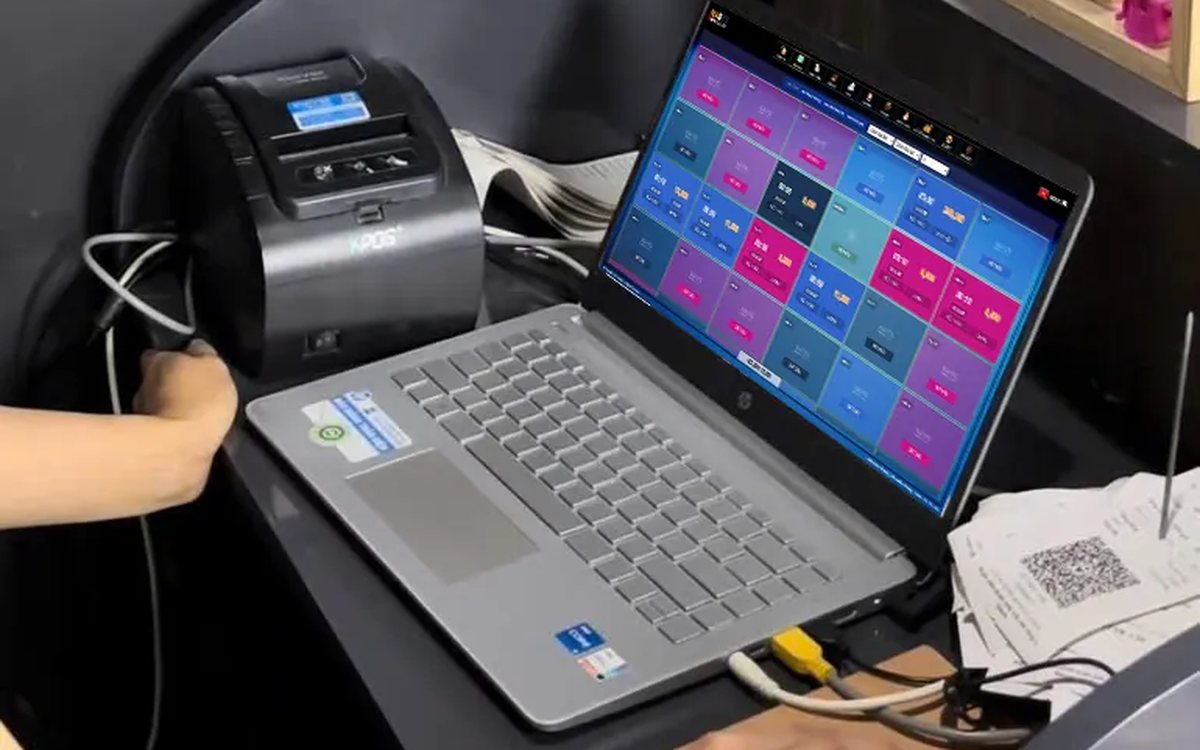
Ordersys times every table automatically, switches table lights, takes drink orders at the table and reports revenue per shift.
Other news

A billiards club member's points wallet: bonus points are deducted first, top-up points second, and only after the cashier confirms
How the points wallet works in the ORDERSYS CLUB member page: five numbers (available, topped-up, earned, used, total); two funds, bonus and top-up, with a fixed deduction order; the customer chooses to use points but the wallet is only debited when the cashier completes payment; four kinds of history lines. Why keeping bonus points apart from top-up points stops the club miscounting revenue.
Topping up a billiards club member card: the customer sends a request, points reach the wallet only after the counter approves
The real top-up flow in the ORDERSYS CLUB member page: the customer picks an amount, bank transfer or cash, and gets a request code; the counter sees the notice on the bell and taps Approve or Reject with a reason; points reach the wallet only after approval and the customer is told right away. The article shows why the approval step and the request code are what stop leakage compared with a notebook.


Billiards club member app: QR player card, points wallet and tier offers on the customer's phone
ORDERSYS CLUB is the member page for a billiards club's regulars: a player card with a QR code, wallet balance, tiers and offers, opening tables, topping up points and ordering on their phone. This article walks through each part customers see, which steps the counter still approves (opening tables, crediting top-ups, deducting points) and the limits owners should tell customers about up front.
Free trial sales software for retail stores: what to prepare and what to test in 7 days
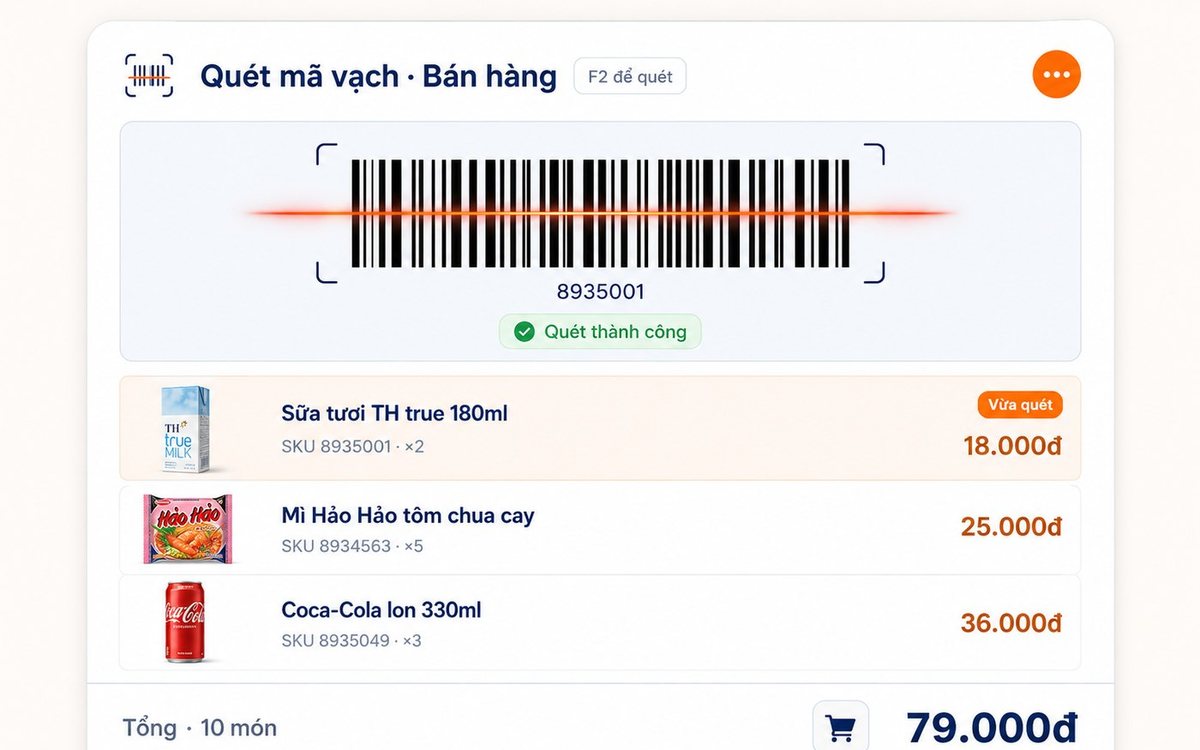
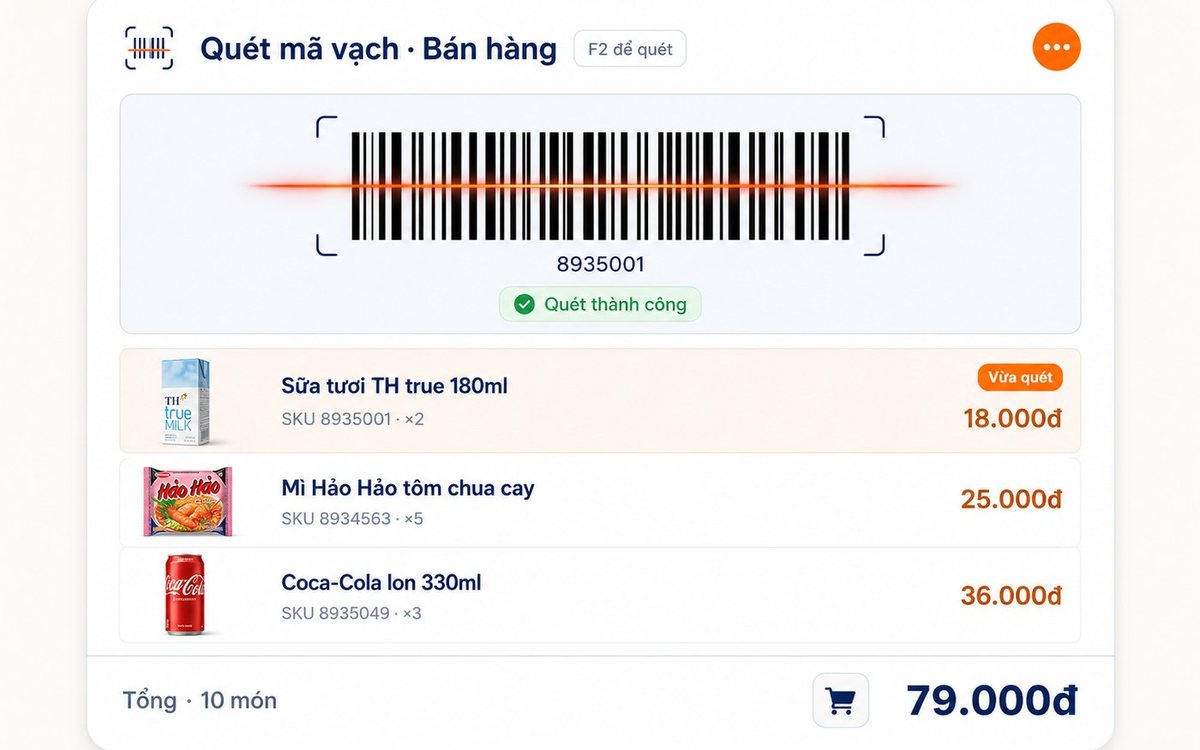
There are two kinds of "free" sales software: free for the long term with limits, and a full trial before you pay. Ordersys offers a 7-day trial with every feature, no card and no setup fee. This guide covers preparing your data from Excel before day one, six tasks to try with your store's real goods and four numbers to decide on when the trial ends.

Cutting billiards highlights: around the scoring mark or by segment, and when you need the full match
The Ordersys billiards management software cuts highlights in two ways: around the scoring mark (seconds before and after set by the club) or by segment (from the previous scoring press to this one), and every match also keeps a full match segment to watch and download. This article compares the two styles, explains how to set the camera delay first and suggests which one a club owner should pick.
Retail software that manages customer debt properly: credit with due dates, part payments that never mix up orders
A handwritten debt book goes wrong in four places: debts not tied to orders, no due date, part payments applied to the wrong order, and repayments mixed with sales cash. This article follows the life of a debt in Ordersys: credit tied to a customer and a due date, filters for nearly due and overdue debts, collections allocated to the earliest due order first, safeguards against workarounds, and opening debt imported from Excel.

How to manage a cafe or small restaurant remotely by phone: what to check each day, and when
Remote management is not watching staff on camera for hours; it is knowing how many times a day to open your phone and which numbers to read. This article gives a concrete daily schedule for cafe and restaurant owners using Ordersys: end-of-day report, shift close report, orders, stock and multiple branches, plus the numbers worth a call right away and what the venue must record.
