



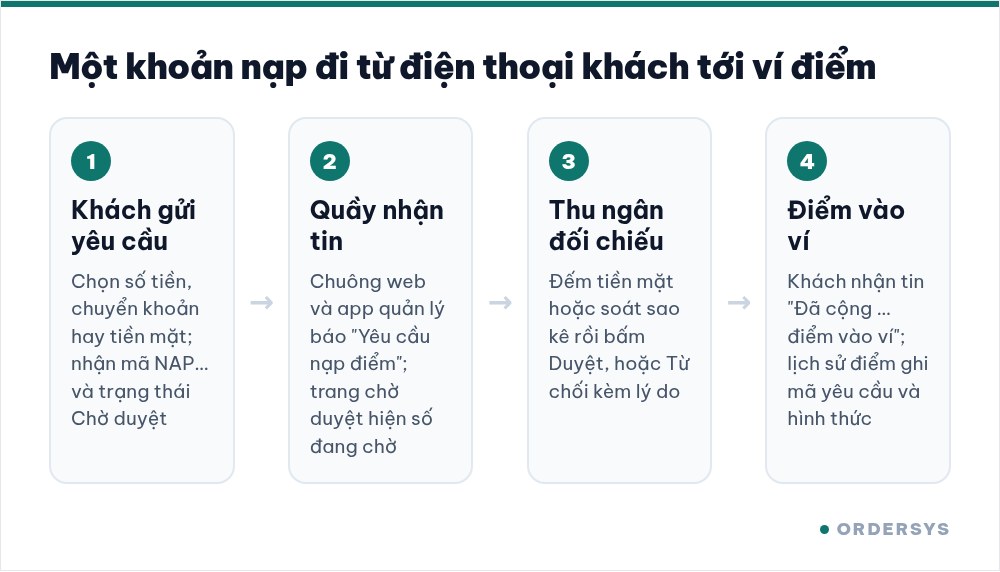
Regulars topping up a card so they can play over several visits is something every billiards club deals with. The trouble is in the recording: a staff member takes the money and types it into the software or writes it in a notebook, by closing time nobody remembers who received what, and the customer only has their word. The ORDERSYS CLUB member page in Ordersys billiards management software handles this through one fixed flow: the customer sends a top-up request from their phone, the counter approves it, and only after approval do points reach the wallet. This article follows the real steps in the software.
Step 1: the customer sends a top-up request from their phone
The player card home page has a Top up points button. The Top-up screen shows the current points, the exchange rate the club applies (each club sets its own; the software has no common rate), an Amount to top up field and an auto-calculated Expected points line. The customer picks one of two methods:
- Bank transfer: the app shows a QR code and the transfer memo if the club has entered its bank account, with a note to send the request after transferring, since the cashier checks the bank statement before adding points.
- Cash at the counter: the customer shows the screen to a staff member and pays at the counter; points are added only after the staff member approves.
After tapping Send top-up request, the customer gets a request code in the form NAP followed by six digits and the status Pending approval. If they change their mind, the customer taps Cancel request while the counter has not yet handled it.
Step 2: the counter receives the notice and taps Approve or Reject
As soon as the customer sends it, the bell on the management web and the management app shows a Top-up request notice with the customer's name, phone number, amount, method and code. The Pending top-up requests page lists each row with the request code, customer, amount, points to be added, method, the time the customer sent it, and two buttons:
- Approve: the software asks again "Approve NAP…: add … points for the top-up of …đ?". On confirmation, points are calculated at the rate in force at approval time, added to the customer's wallet, and one points-history line is written carrying the request code and whether it was cash or transfer.
- Reject: the cashier writes a Reason for rejection (up to 255 characters) that the customer reads in the app immediately. The rejection is recorded in the club's action history together with who handled it.
If two machines have this page open, only the first tap takes effect; the other machine gets the message "This request has already been handled by someone else", so a top-up can never be credited twice.
Step 3: the customer gets a message and the wallet updates
| What the counter does | What the customer sees on their phone |
|---|---|
| Approve | Message "… points added to your wallet — The club has confirmed your top-up of …đ". Wallet balance goes up, the request changes to Approved, and Points history gains a Top-up line. |
| Reject with a reason | Message "Top-up request of …đ rejected — Code … · Reason: …". Status Rejected by club. |
| Reject without a reason | Same message, with the reason replaced by "Please contact the counter for the reason". |
| Customer cancels before the counter handles it | Status Cancelled by you; the counter has nothing more to do. |
The customer page updates itself when the counter acts, with no reload needed.
Why the approval step and the request code are what stop leakage
A notebook and manual entry in the software share the same hole: the money and the points are entered by the same person, with no trail to reconcile. The flow above splits the job in two: the customer declares the amount and the method, and the counter has only two buttons, Approve or Reject. Every top-up has a code, the time it was sent, the time it was handled and the staff account that handled it. At the end of the day the owner compares the cash in the drawer and the bank statement against the Handled list and sees straight away where any gap is. With bank transfers, the approval step also blocks the "I already sent it" situation when the money has not arrived, because the app has already told the customer that the cashier checks the statement before adding points.
Keep in mind that money a customer loads onto a card is not yet money the club has earned; how to treat it is covered in the player membership card: how to bring customers back to your billiards club. In the wallet, top-up points are kept separate from bonus points, and at checkout the cashier still has to confirm before points are deducted; see the billiards club member app: QR player card, points wallet and tier offers.
Tell customers and staff in advance
- Top-up is an optional feature: the club has to enable top-ups and set an exchange rate; if not enabled, the app shows "The club has not enabled top-ups".
- Points are calculated at the rate in force at approval, not when the customer sends the request. If you change the rate, approve all pending requests first.
- Tell staff to open the Pending top-up requests page every time the bell rings, and to write a reason when rejecting so the customer does not have to come back and ask.
See Ordersys billiards management software
The top-up flow above is part of Ordersys billiards club management software, which shares member data and the points wallet with the cashier screen. Sign up for a free 7-day trial, or message us on Zalo or call 090 750 1000 for help enabling top-ups for your regulars.
Ordersys times every table automatically, switches table lights, takes drink orders at the table and reports revenue per shift.
Other news

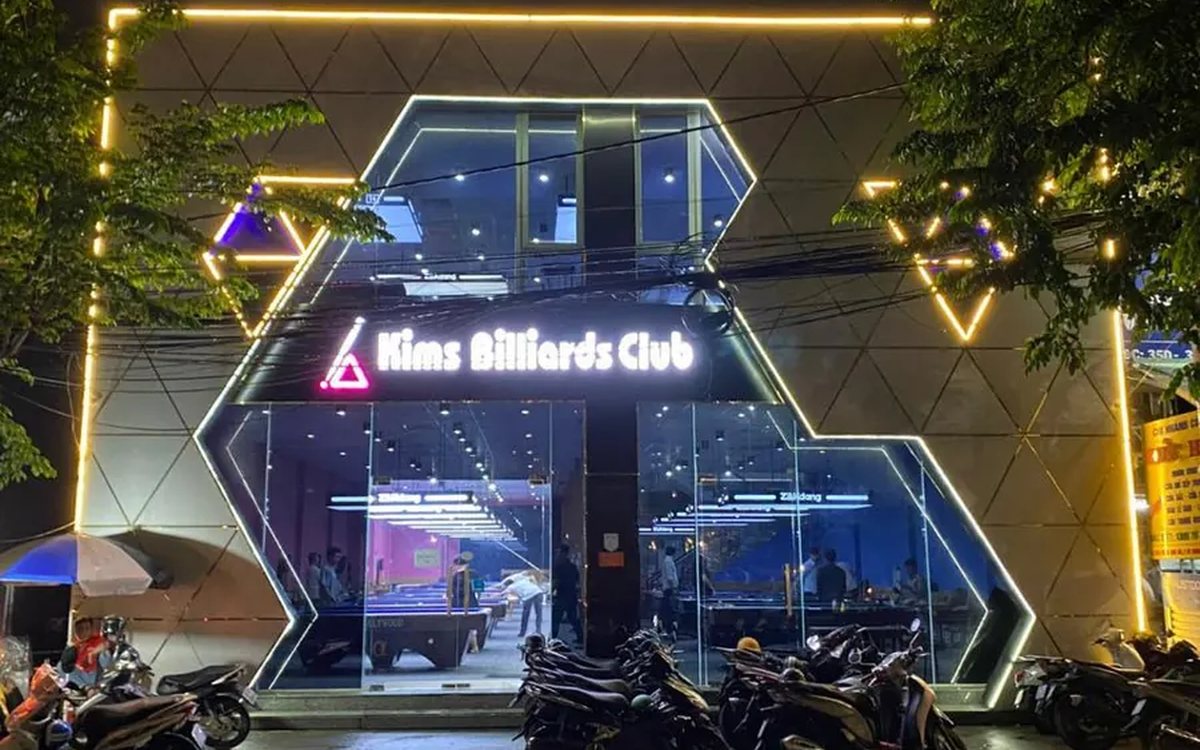
Billiards club member app: QR player card, points wallet and tier offers on the customer's phone
ORDERSYS CLUB is the member page for a billiards club's regulars: a player card with a QR code, wallet balance, tiers and offers, opening tables, topping up points and ordering on their phone. This article walks through each part customers see, which steps the counter still approves (opening tables, crediting top-ups, deducting points) and the limits owners should tell customers about up front.
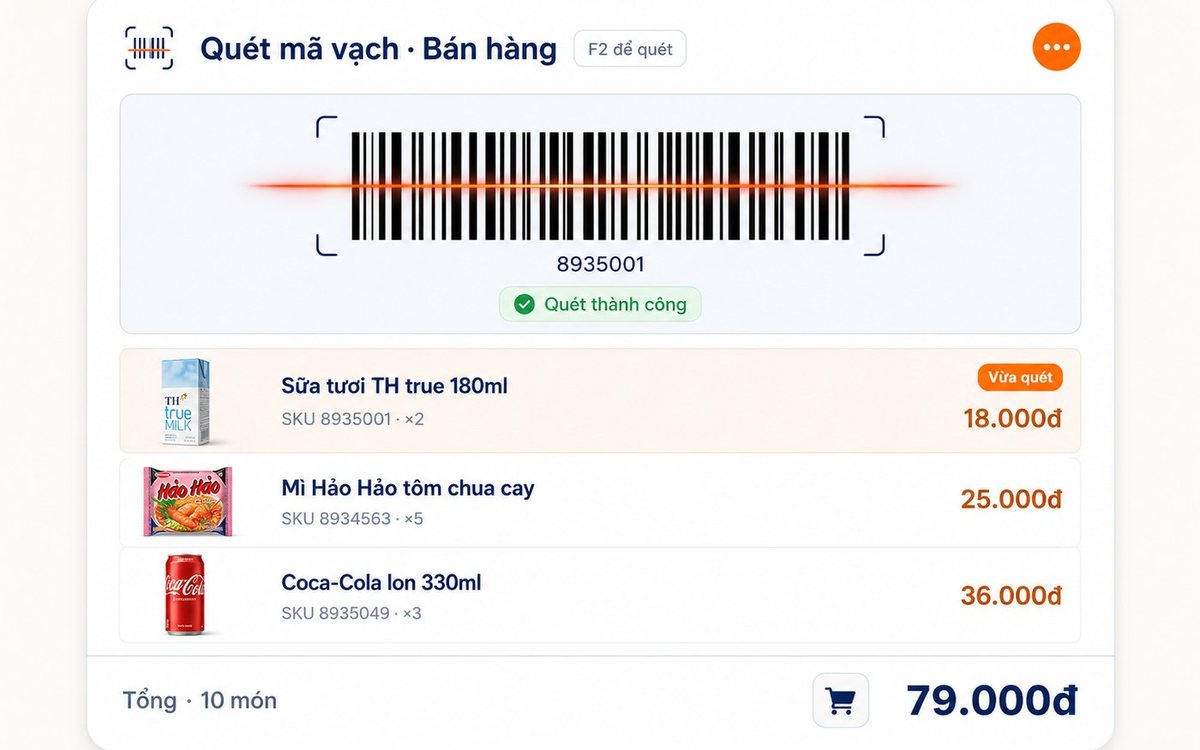
Free trial sales software for retail stores: what to prepare and what to test in 7 days
There are two kinds of "free" sales software: free for the long term with limits, and a full trial before you pay. Ordersys offers a 7-day trial with every feature, no card and no setup fee. This guide covers preparing your data from Excel before day one, six tasks to try with your store's real goods and four numbers to decide on when the trial ends.

Cutting billiards highlights: around the scoring mark or by segment, and when you need the full match
The Ordersys billiards management software cuts highlights in two ways: around the scoring mark (seconds before and after set by the club) or by segment (from the previous scoring press to this one), and every match also keeps a full match segment to watch and download. This article compares the two styles, explains how to set the camera delay first and suggests which one a club owner should pick.
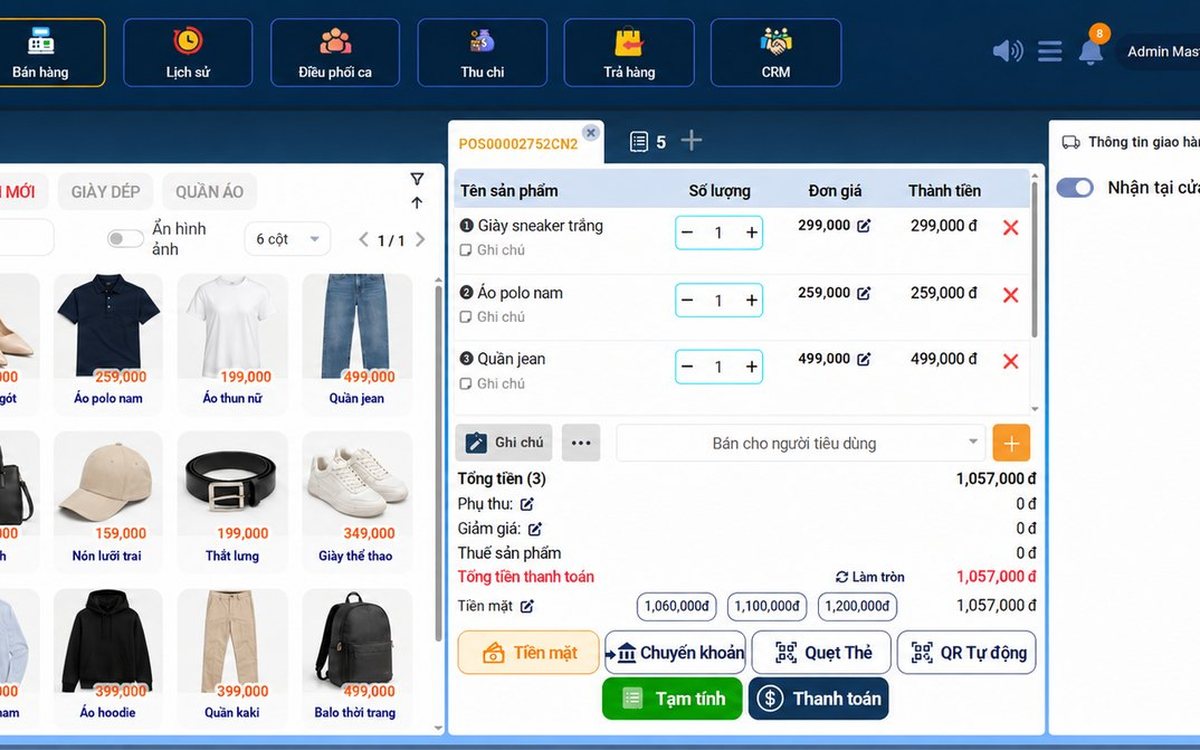
Retail software that manages customer debt properly: credit with due dates, part payments that never mix up orders
A handwritten debt book goes wrong in four places: debts not tied to orders, no due date, part payments applied to the wrong order, and repayments mixed with sales cash. This article follows the life of a debt in Ordersys: credit tied to a customer and a due date, filters for nearly due and overdue debts, collections allocated to the earliest due order first, safeguards against workarounds, and opening debt imported from Excel.
How to manage a cafe or small restaurant remotely by phone: what to check each day, and when
Remote management is not watching staff on camera for hours; it is knowing how many times a day to open your phone and which numbers to read. This article gives a concrete daily schedule for cafe and restaurant owners using Ordersys: end-of-day report, shift close report, orders, stock and multiple branches, plus the numbers worth a call right away and what the venue must record.
QR payment with automatic reconciliation: reading the shift close report so the money matches
When a venue takes many transfers, the drawer holds only part of the revenue. This article walks through the Ordersys shift close report money stream by money stream: cash, bank transfer, card, auto QR and debt; which lines the software already matched, which the cashier must check item by item, orders paid two ways, orders tapped with the wrong method, and the order of reconciliation before closing the shift.

Billiards management software free trial: what to test in 7 days before buying
Instead of hunting for free billiards management software, trying the full version for 7 days on real tables, at real hours, with real staff gives a surer answer. This article suggests a day-by-day trial plan for a billiards hall: tables and hourly rates, running alongside the paper log, table ordering, shift close, hardware and reports, plus four mistakes that waste the trial and the questions to ask before buying.
