



Regulars at a billiards club tend to ask the counter the same three questions: how much is left on my card, how far am I from the next tier, which tables are free. If the cashier has to open a notebook or dig through the software every time, it wastes time and the answer is easy to get wrong. Ordersys has a member page, ORDERSYS CLUB, where customers check these things themselves on their phone: a player card with a QR code, a points wallet, tiers and offers, opening a table and ordering. This article walks through each part the customer sees, which parts the counter still has to approve, and the limits owners should know before introducing it to customers.
How customers get an account
Customers sign up at the counter: the cashier creates the account and issues a temporary password. The customer then logs in with their phone number and password in the phone's browser, using the club's own link, and changes the password themselves (at least 8 characters). The card lives on the phone, so the club does not have to issue plastic cards. Customers cannot change their phone number, member code or points from the phone; they can only edit their name, email and address.
The interface comes in Vietnamese, English and Korean, and foreign customers pick their language under Account. When needed, the club can pause the online player card. The login page then asks customers to contact staff at the counter.
Home screen: the player card and four quick actions
After logging in, the customer immediately sees the PLAYER CARD with their member code, wallet balance, current tier and a "… more to reach …" line if the club has set up tiers. Below are four buttons:
| Button | What the customer does | Club side |
|---|---|---|
| Open table | See free tables, areas and hourly rates; pick one or more tables and send an open-table request | Staff receive the request, then open the table or cancel |
| Top up points | Choose bank transfer or cash at the counter, send a top-up request | The cashier checks the money and approves; points are added only after approval |
| Order | Order food and drinks for the table being played | The club approves items; the customer is told whether each item was approved or rejected |
| My code | Open the member code and QR code | The cashier reads the code to look up the right account |
The third column is what matters for the owner: customers send requests from their phone, but opening tables, crediting top-ups and accepting orders are still decided by the person at the counter.
While playing: running time, estimated table charge, ordering more
Once a table is open, the home screen shows a Table in play block with the duration, start time and estimated table charge, clearly marked "excluding food and offers". Customers tap Order more or Request payment right there. A group playing several tables at once gets one block per table, so charges between tables do not mix.
Sending a payment request does not mean the bill is paid. The app says it plainly: the wallet is only deducted when the cashier approves, any shortfall is paid at the counter, and the clock keeps running until the counter closes the bill. Afterwards customers can review their play history and each bill: table time, food and drinks, discounts, vouchers, points redeemed and points earned. That cuts down on "why was yesterday so expensive" questions.
Points wallet, top-ups and member tiers
- The wallet shows five figures: available points, topped-up points, used points, earned points and total points. At payment, bonus points are deducted first and topped-up points only after those run out.
- Top-ups go through approval: the customer sends a request and sees "Awaiting approval"; when the counter approves, a "… points added to your wallet" message arrives. If it is rejected, the customer gets the request code and the reason.
- Tiers are based on tier points accumulated from earned points and topped-up points. Spending points on a bill does not drop the tier. On reaching a new tier the customer is told the discount the club has set for that tier.
- Offers: the customer's vouchers and top-up gift milestones, if the club turns them on. One voucher per bill, and the cashier applies the code when closing the bill.
For how to set tiers and gifts so customers feel they are within reach, see player membership cards: how to bring customers back to your billiards club. If a chain turns on shared membership, customers use one account at every club in the chain; see managing a chain of billiards clubs.
Notifications: customers know right away what the club did
Every action the counter takes sends a message to the customer's phone: staff opened the table and the clock started, an item was approved or rejected, a top-up was credited, a new tier was reached, a bill was paid with the total. Cancelled open-table requests and cancelled bookings also trigger a message, with the reason if the counter entered one. Tapping a message opens the related screen.
A few limits to know up front
- The QR code on the card is only for lookup at the counter, not a substitute for logging in. Someone who photographs the code still cannot get into the account.
- Points are only deducted when the cashier confirms at payment; the software does not deduct them automatically. If the club has not turned on point redemption, the app asks the customer to contact the counter.
- The table charge in the app is an estimate and excludes food, time-based promotions, surcharges or tax where the club applies them.
- The club can cancel open-table requests, bookings and ordered items. Do not promise customers that booking through the app guarantees a table.
- The money-to-points rate, discounts and point thresholds for each tier are set by each club. Opening tables, top-ups, tiers and vouchers are all optional. If the club has not turned one on, the app tells the customer.
See the Ordersys billiards management software
The ORDERSYS CLUB member page shares data with the Ordersys billiards club management software: tables, hourly rates, menu items, points and tiers are set once in the management side and customers see them on their phone right away. Customers who do not log in can still order with the QR code on the table; see scanning a QR code to order drinks at a billiards table. Sign up for a free 7-day trial, or message us on Zalo or call 090 750 1000 for advice on turning on player cards for your club's regulars.
Ordersys times every table automatically, switches table lights, takes drink orders at the table and reports revenue per shift.
Other news
Free trial sales software for retail stores: what to prepare and what to test in 7 days
There are two kinds of "free" sales software: free for the long term with limits, and a full trial before you pay. Ordersys offers a 7-day trial with every feature, no card and no setup fee. This guide covers preparing your data from Excel before day one, six tasks to try with your store's real goods and four numbers to decide on when the trial ends.
Cutting billiards highlights: around the scoring mark or by segment, and when you need the full match
The Ordersys billiards management software cuts highlights in two ways: around the scoring mark (seconds before and after set by the club) or by segment (from the previous scoring press to this one), and every match also keeps a full match segment to watch and download. This article compares the two styles, explains how to set the camera delay first and suggests which one a club owner should pick.
Retail software that manages customer debt properly: credit with due dates, part payments that never mix up orders
A handwritten debt book goes wrong in four places: debts not tied to orders, no due date, part payments applied to the wrong order, and repayments mixed with sales cash. This article follows the life of a debt in Ordersys: credit tied to a customer and a due date, filters for nearly due and overdue debts, collections allocated to the earliest due order first, safeguards against workarounds, and opening debt imported from Excel.
How to manage a cafe or small restaurant remotely by phone: what to check each day, and when
Remote management is not watching staff on camera for hours; it is knowing how many times a day to open your phone and which numbers to read. This article gives a concrete daily schedule for cafe and restaurant owners using Ordersys: end-of-day report, shift close report, orders, stock and multiple branches, plus the numbers worth a call right away and what the venue must record.
QR payment with automatic reconciliation: reading the shift close report so the money matches
When a venue takes many transfers, the drawer holds only part of the revenue. This article walks through the Ordersys shift close report money stream by money stream: cash, bank transfer, card, auto QR and debt; which lines the software already matched, which the cashier must check item by item, orders paid two ways, orders tapped with the wrong method, and the order of reconciliation before closing the shift.

Billiards management software free trial: what to test in 7 days before buying
Instead of hunting for free billiards management software, trying the full version for 7 days on real tables, at real hours, with real staff gives a surer answer. This article suggests a day-by-day trial plan for a billiards hall: tables and hourly rates, running alongside the paper log, table ordering, shift close, hardware and reports, plus four mistakes that waste the trial and the questions to ask before buying.
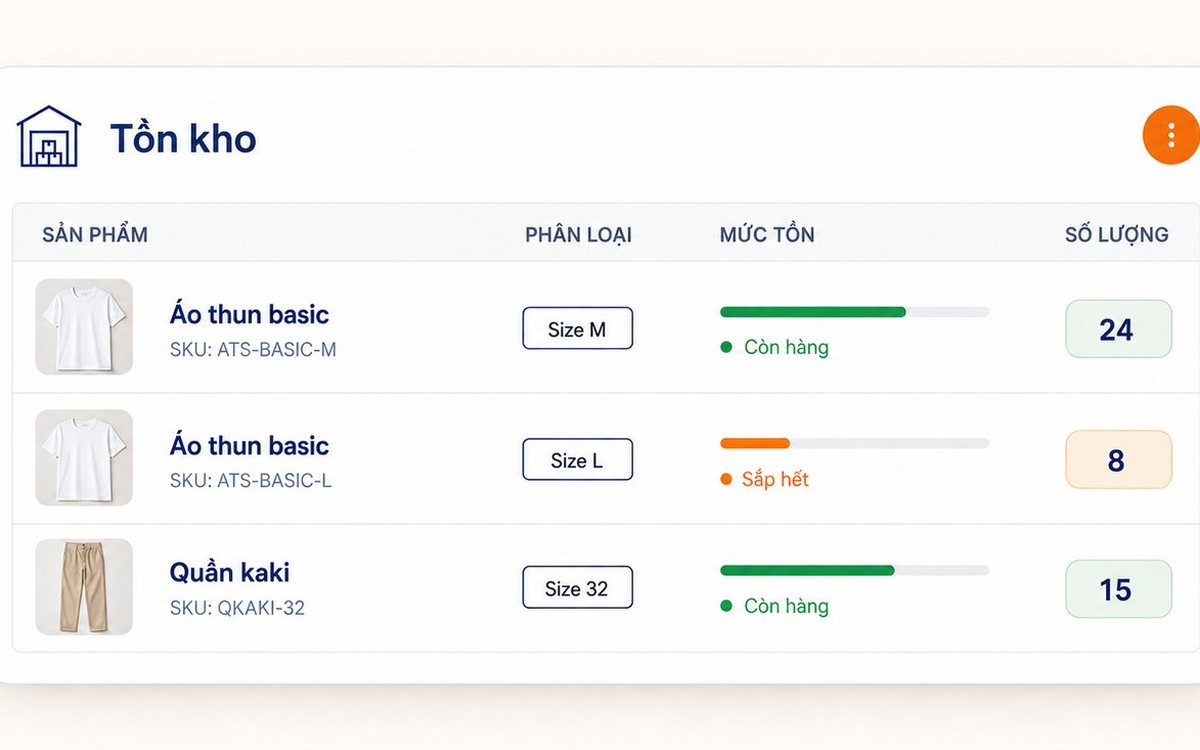
Inventory and stock software for retail stores: every item in and out has a document
When the stock on screen does not match the shelf, the software rarely miscounted; goods left or entered the stockroom without being recorded. This article follows an item through a retail store: opening stock, two-step purchase receipts (incoming first, then received into stock), instant deduction on sale, branch transfer slips, supplier returns, approved adjustments, the In–Out–Balance report and stock limits.
Ordering software for takeaway cafés: fast to-go orders, no mixed-up cups
A takeaway café does not lose time at the espresso machine but in four steps at the counter: typing option notes, customers changing their mind late, waiting to check transfers and handing over the wrong cup. This article shows how ordering software fixes each step: size, sugar, ice and toppings as buttons, a customer display to confirm before the cup is made, a payment QR in the total box and a numbered label for every cup.
Automatic payment confirmation: customers scan VietQR or MoMo and the order closes itself
At busy times, cashiers lose the most time hunting for bank transfers. This article explains automatic payment confirmation in ordering software for restaurants and cafés: how it differs from a regular transfer QR, what happens from the moment a customer scans VietQR (BIDV), MoMo or VNPay until the order switches to paid, what runs automatically afterwards (receipts, stock deduction, member points) and when the software deliberately does not close the order.
