



A billiards club's member list tends to get messier every year: one player ends up with two cards because they signed up under a different name the second time, a customer who forgot their password waits at the counter, a regular stops coming while their card still holds points, and a new staff member does not know whether to delete or keep. The earlier articles in the ORDERSYS CLUB series covered the customer side: the app, the points wallet, the tiers. This one covers the counter side: the Customer screen in Ordersys billiards club management software, where cashiers and owners register, look up, check point history and suspend members.
What the Customer screen contains
The Customer screen has four tabs: Customer Management, Gift milestones, Top-ups (top-up requests customers send from their phones) and Checkout requests. This article focuses on the first tab. Each member is one row with the following columns:
| Column | What it means |
|---|---|
| Customer Name, Phone number | Details for looking the member up; the phone number is also the customer's login on the app |
| Total points | Earned points plus topped-up points |
| Accumulated points, Recharge points | Points from bills and points from top-ups, kept separate |
| Used points, Remaining points | How much the customer has redeemed and how much is left in the wallet |
| Membership rating | The current tier based on the thresholds the club set; below every threshold it shows "Not enough point" |
| Most recent activity | The last time the customer earned, topped up or redeemed points |
Registering a member: one phone number, one profile
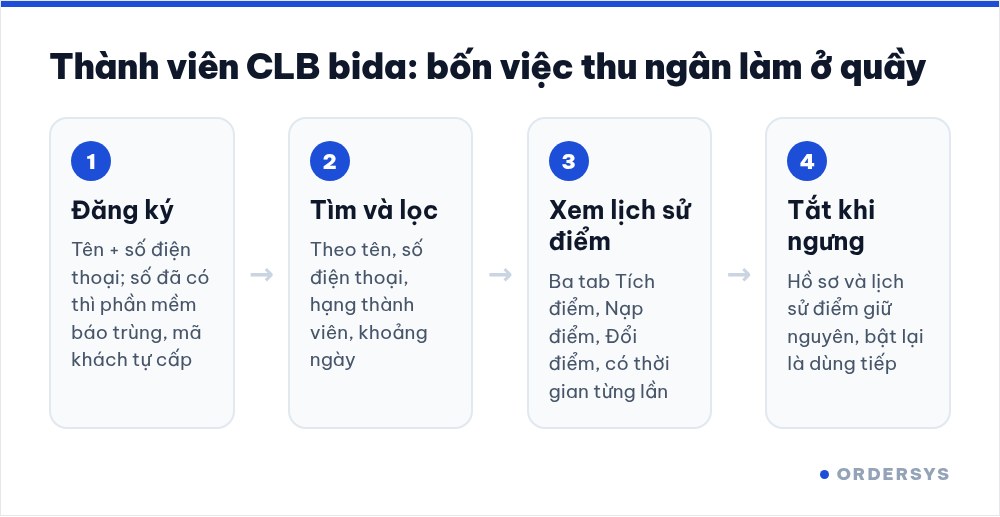
After pressing Add +, the cashier picks a Customer Type: Personal or Business. Name and phone number are required. A personal profile also has gender and date of birth; a business profile (a company or a team that rents tables regularly) additionally requires a tax code and company name. Both types have fields for national ID (CCCD) number, email, address and notes. The Customer Code is assigned automatically, so the cashier never has to invent a number.
What keeps the list from getting messy is that, when adding a new member, the software will not create a second profile with a phone number that already exists: a duplicate number shows "Phone number already exists", and a duplicate email shows "Email already exists". If the cashier types the number the customer reads out before creating anything, they know at once whether the customer already has a card. When a customer changes their phone number, edit the existing profile instead of creating a new one, so their points and tier follow them. Once registered, the customer logs in to the member page with their phone number, see the billiards club member app: QR player card, points wallet and tier benefits.
Finding customers and filtering by tier
At the top of the list there is a search box for name or phone number, a tier selector (All, Not enough point or any tier the club has switched on) and two date fields, defaulting to the last month, to narrow down customers who had point activity or registered in that period. A few ways to use it at the counter:
- Filter one tier to see who is currently in it before changing its discount. How to set thresholds and discounts is covered in billiards club membership tiers: rank points only add up, and using points never drops a tier.
- Filter Not enough point to see how many people have registered but have not reached any tier yet.
- Look at the Most recent activity column to spot regulars who have not been in for a while.
Viewing one player's point history
Click the eye icon and the Member details screen shows the profile, tier, total points, earned points, topped-up points, points used, points remaining, and three tabs, Accumulate points, Recharge points and Exchange points, each line with a time and a number of points. When a customer asks "why is my card so low?", the cashier opens the Exchange points tab and reads through each entry instead of guessing. The order in which points are deducted at payment is covered in the billiards customer points wallet: bonus points go first, topped-up points after.
If the club has switched on converting top-up money into points, a Recharge points button appears next to the Recharge points column so customers can top up with cash right at the counter: enter the amount, and the software converts it into points at the rate the club set. Topping up requires an open shift, and it is not possible during another staff member's shift, so top-up money matches the right person's cash drawer. When a customer reaches a gift milestone, the screen reminds the cashier to hand over the gift. Top-up requests customers send from their phones go through a separate approval flow, see topping up a billiards club member card: points are added only after the counter approves.
A customer stops playing or forgets their password: switch off, reset or delete
| Action | Use it when | What happens |
|---|---|---|
| Switch off | The customer pauses, or the card is being misused | Profile and point history stay intact; the name no longer appears when choosing a member at payment; logging in to the app shows "Your account is currently inactive."; switch it back on and it works again |
| Reset password | The customer forgot their password | Click the key icon, confirm, and the password goes back to the default; the customer logs in and changes it themselves |
| Delete | A profile was created by mistake | Only profiles with no point history can be deleted; if points were earned, topped up or redeemed, it shows "Cannot delete this member" |
In short: for a real customer, switch off, do not try to delete. Topped-up points are money the customer paid in advance, and the history has to stay so it can be checked when the customer asks again.
Staff permissions and clubs with several branches
Customer is a separate permission group when the owner sets up staff accounts. Staff without it cannot open the Customer screen, cannot add customers and cannot top up points here. Attaching an existing member to a bill, on the other hand, belongs to the Member sub-permission in the Payment group, so a cashier can still check out members without being able to edit profiles or top up points.
If the club belongs to a chain, this screen has a Shared membership switch (only visible to accounts with the Settings permission). Turned on, the member list and point history are shared across the clubs in the chain. It is best switched on before handing out cards at a new club; details in managing a chain of billiards clubs.
See Ordersys billiards club management software
The Customer screen is part of Ordersys billiards club management software, sharing data with table timing, payment and the customers' ORDERSYS CLUB member page: the cashier registers a member once at the counter, and the customer sees their card, points and tier straight away on their phone. Sign up for a 7-day free trial, or message us on Zalo or call 090 750 1000 for advice on organising your club's member list.
Ordersys times every table automatically, switches table lights, takes drink orders at the table and reports revenue per shift.
Other news

Billiards club membership tiers: rank points only add up, paying with points never drops a tier, and moving up means a discount every visit
How Ordersys billiards club management software decides membership tiers: rank points add up from earned and topped-up points, and paying with points never lowers a tier; customers see their tier, discount and distance to the next tier on the ORDERSYS CLUB member page; the club sets tier names, discount rates and point thresholds, and chooses whether the discount applies to the whole order, playing time or food and drinks.

A billiards club member's points wallet: bonus points are deducted first, top-up points second, and only after the cashier confirms
How the points wallet works in the ORDERSYS CLUB member page: five numbers (available, topped-up, earned, used, total); two funds, bonus and top-up, with a fixed deduction order; the customer chooses to use points but the wallet is only debited when the cashier completes payment; four kinds of history lines. Why keeping bonus points apart from top-up points stops the club miscounting revenue.
Topping up a billiards club member card: the customer sends a request, points reach the wallet only after the counter approves
The real top-up flow in the ORDERSYS CLUB member page: the customer picks an amount, bank transfer or cash, and gets a request code; the counter sees the notice on the bell and taps Approve or Reject with a reason; points reach the wallet only after approval and the customer is told right away. The article shows why the approval step and the request code are what stop leakage compared with a notebook.


Billiards club member app: QR player card, points wallet and tier offers on the customer's phone
ORDERSYS CLUB is the member page for a billiards club's regulars: a player card with a QR code, wallet balance, tiers and offers, opening tables, topping up points and ordering on their phone. This article walks through each part customers see, which steps the counter still approves (opening tables, crediting top-ups, deducting points) and the limits owners should tell customers about up front.
Free trial sales software for retail stores: what to prepare and what to test in 7 days
There are two kinds of "free" sales software: free for the long term with limits, and a full trial before you pay. Ordersys offers a 7-day trial with every feature, no card and no setup fee. This guide covers preparing your data from Excel before day one, six tasks to try with your store's real goods and four numbers to decide on when the trial ends.

Cutting billiards highlights: around the scoring mark or by segment, and when you need the full match
The Ordersys billiards management software cuts highlights in two ways: around the scoring mark (seconds before and after set by the club) or by segment (from the previous scoring press to this one), and every match also keeps a full match segment to watch and download. This article compares the two styles, explains how to set the camera delay first and suggests which one a club owner should pick.
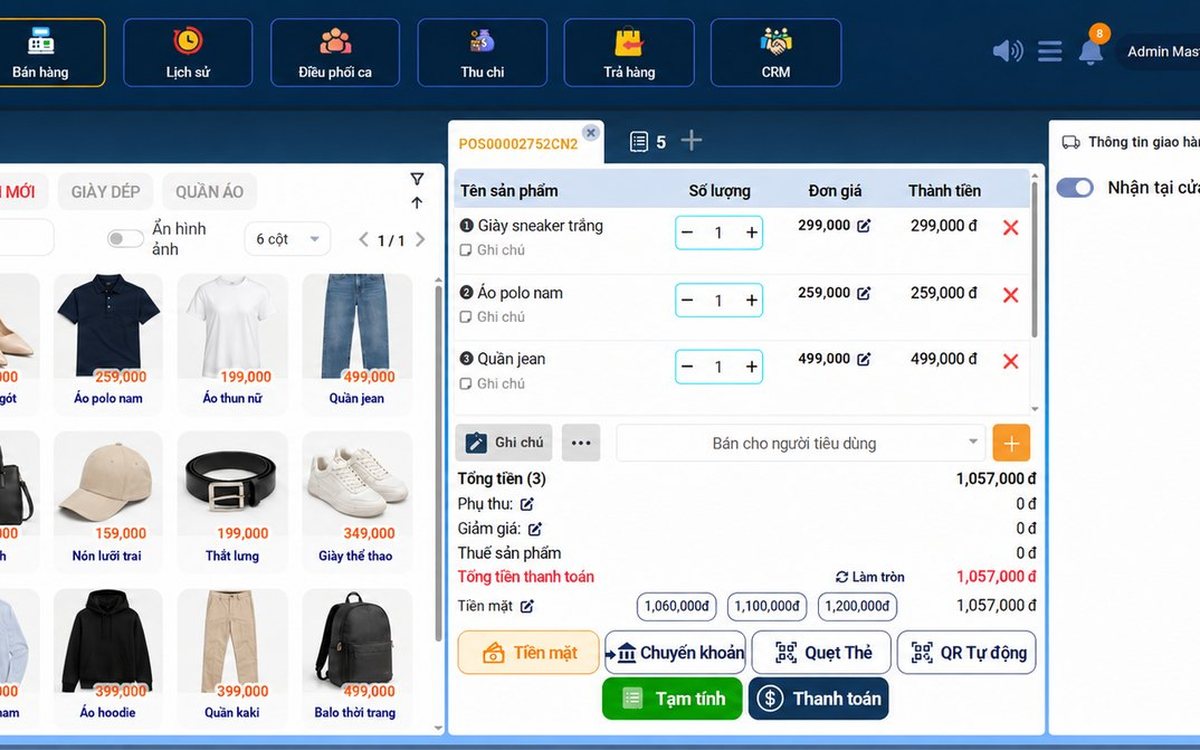
Retail software that manages customer debt properly: credit with due dates, part payments that never mix up orders
A handwritten debt book goes wrong in four places: debts not tied to orders, no due date, part payments applied to the wrong order, and repayments mixed with sales cash. This article follows the life of a debt in Ordersys: credit tied to a customer and a due date, filters for nearly due and overdue debts, collections allocated to the earliest due order first, safeguards against workarounds, and opening debt imported from Excel.
