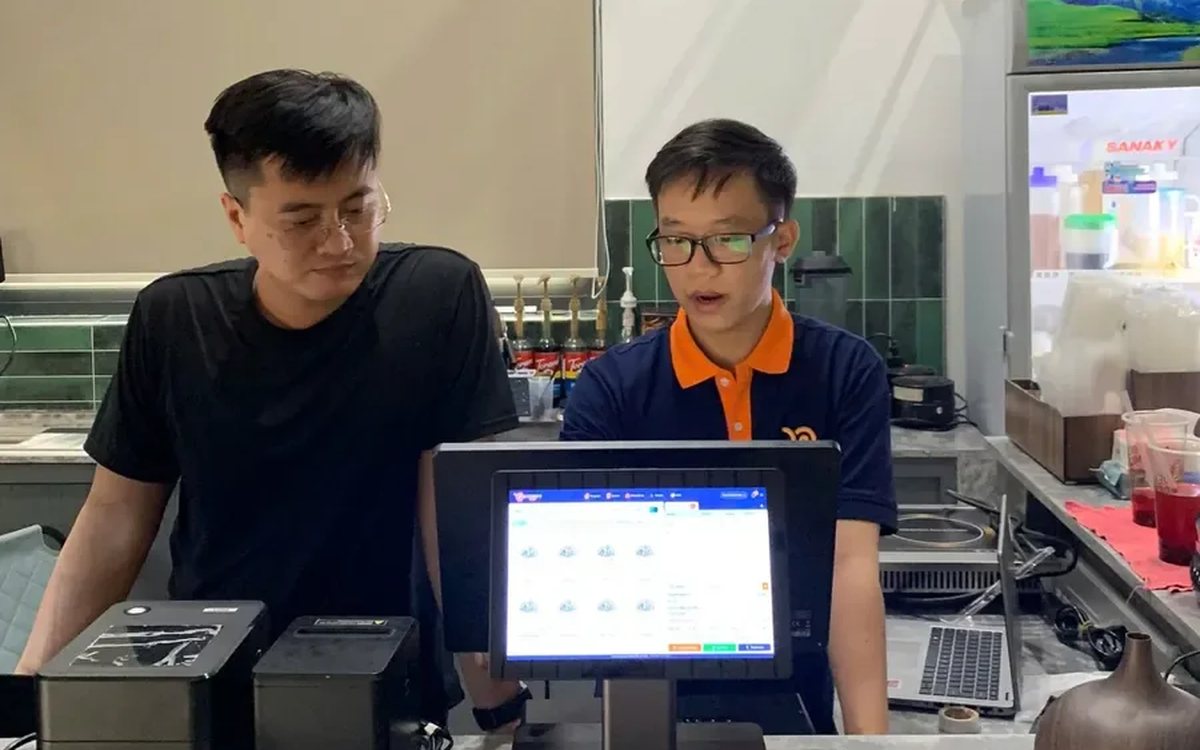
A small place with one kitchen prints everything in one spot and everyone can read it. A larger restaurant is different: hot kitchen in one corner, cold kitchen in another, the bar out by the entrance, sometimes a separate grill station. If you still print one sheet and cut it up to share around, peak hour is when it breaks: the ticket sits at the hot kitchen while the salad waits at the cold station, and the customer has been seated twenty minutes without a starter.
Assign product groups to each printer
The approach in Ordersys is to register the printers first, then assign product groups to them. The "Grilled dishes" group goes to the printer at the grill station, "Drinks" and "Beer" to the one at the bar, "Starters and salads" to the cold kitchen. Staff tap items on screen as usual; when the order is sent to the kitchen, the system splits the ticket by group and pushes each part to the right machine.
The setup lives under the Kitchen/Bar printer settings. Each branch registers its own printers, so a restaurant with two locations does not have to worry about tickets landing in the wrong place.
How many tickets one table produces across stations
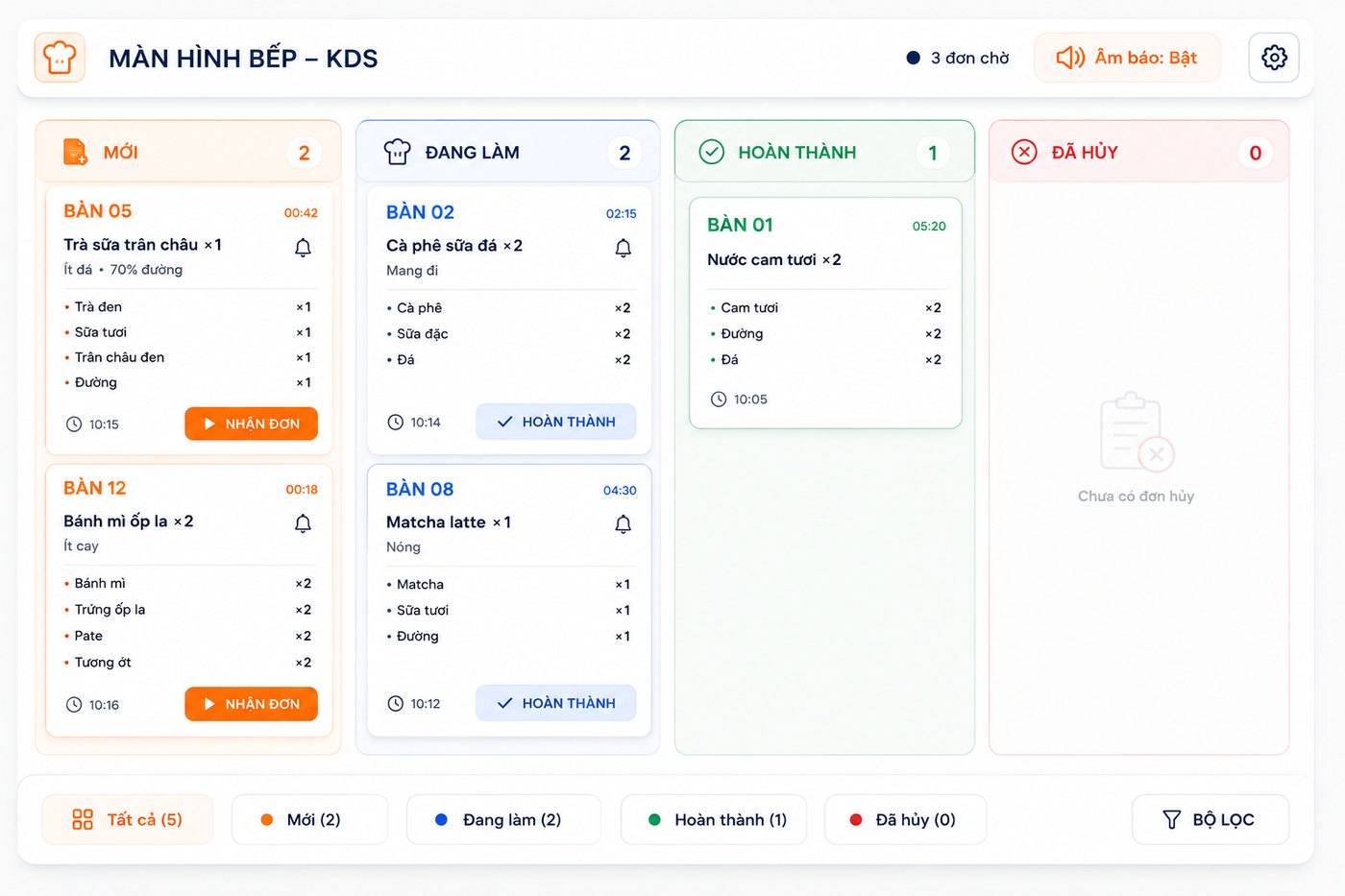
A table ordering three grilled dishes, one salad and four beers produces three tickets in three places, each carrying only that station's work plus the table number. The grill does not have to read past the beer lines and skip them. When the table orders more mid-meal, only the station concerned gets the additional ticket; the others are not disturbed.
Some items sit between two stations — coffee made at the bar but the cake coming from the cold kitchen, for instance. That is solved by grouping products carefully from the start rather than leaving staff to remember it verbally. The product group is what decides where a ticket goes, so the way you group has to match the way the kitchen is laid out.
Choosing printers: IP or USB
Network (IP) printers suit a restaurant with stations far apart: plug in the network cable or use wifi, the software finds the printer by its IP, and it does not depend on which computer happens to be switched on. USB printers connect straight to the till, which fits the cashier counter or a place with a single prep area right behind it.
- Use IP printers for the kitchen and bar; if the machine is off or unplugged, that whole station receives nothing.
- Register the correct printer model during setup — the wrong model means garbled characters or paper that will not cut.
- Thermal paper fades fast in the heat of a hot kitchen; that is the station where a kitchen display is worth considering instead of paper.
Other things that need their own printer
It is not only kitchen and bar. The software lets you register a different printer for each function:
| Type of ticket | Where it sits | What it is for |
|---|---|---|
| Kitchen and bar tickets | Each prep station | Only that station's dishes, with the table number |
| Sales bill | Cashier counter | Customer payment, can be reprinted when needed |
| Labels | Bar station, packing area | Stuck on cups and takeaway boxes |
| E-invoice | Cashier counter | Printed representation of an invoice issued from the till |
| Shift and shift-close slips | Counter or back office | Shift handover and end-of-shift cash reconciliation |
When the kitchen loses a ticket, where do you look
A ticket failing to print will happen: out of paper, network dropped, someone unplugged the wrong cable. The system keeps a print history to check against — which ticket was pushed, at what time, to which machine. That separates two very different situations: staff forgot to send the order, or it was sent and the printer did not print. Kitchen tickets can be reprinted, so you do not have to make the customer order again.
With the kitchen display switched on it is safer still: orders appear on screen by status — new, in progress, done — so even when a printer plays up the kitchen can still see the work. That is why many busy restaurants run both side by side.
Per-station printer setup, the kitchen display and the table map are part of Ordersys restaurant management software, free to try for 7 days. Read more: ordering software for eateries: table-side orders sent straight to the kitchen and receipt printers for a restaurant: which type to choose and how to use it with the software.
Staff take orders on their phones, the kitchen gets them instantly, guests order and pay by QR, owners see revenue remotely.
Other news
Tracking seasonal best sellers to update a coffee shop menu
A thirty-item menu where revenue comes from seven or eight drinks. Read the product report by period, set it next to cost, sort items into four groups, and only then decide to keep, push or drop.

Recurring hair care packages and membership cards for salons
A six-session conditioning package and a membership card are two different things, and managing them the same way is where it gets messy. Deduct the session on the ticket, split commission between the lead and the washer, and know how many sessions you still owe.

Managing employment contracts: renewal reminders and employee files
End of probation, contract expiry, documents lapsing — dates that come once per person and slip past easily. One file per employee with documents and expiry dates, and notice before each date arrives.

Prepaid cards and treatment packages for massage guests
A stored-value card is drawn down by service price, a package by session — two different mechanics that need different setups. Deduct in the room, and see both money received and sessions still owed.
Billiards club cameras: matching tickets against table footage
The action history tells you which table, what time, who opened or cancelled; the camera on that same table shows what actually happened. Put the two side by side and a check takes minutes.

Food and drink combos per room for karaoke venues
A fixed set or a combo the guest picks from, ordered as one line instead of five, with kitchen and bar receiving the right items and the combo landing on the same bill as the room time charge.

Grouping VIP customers so offers reach the right people
Total purchases, remaining points, tier, customer group, outstanding debt, date of birth — the columns already in your customer list are enough to split groups. Tiers handle regulars; vouchers handle the ones who stopped coming.
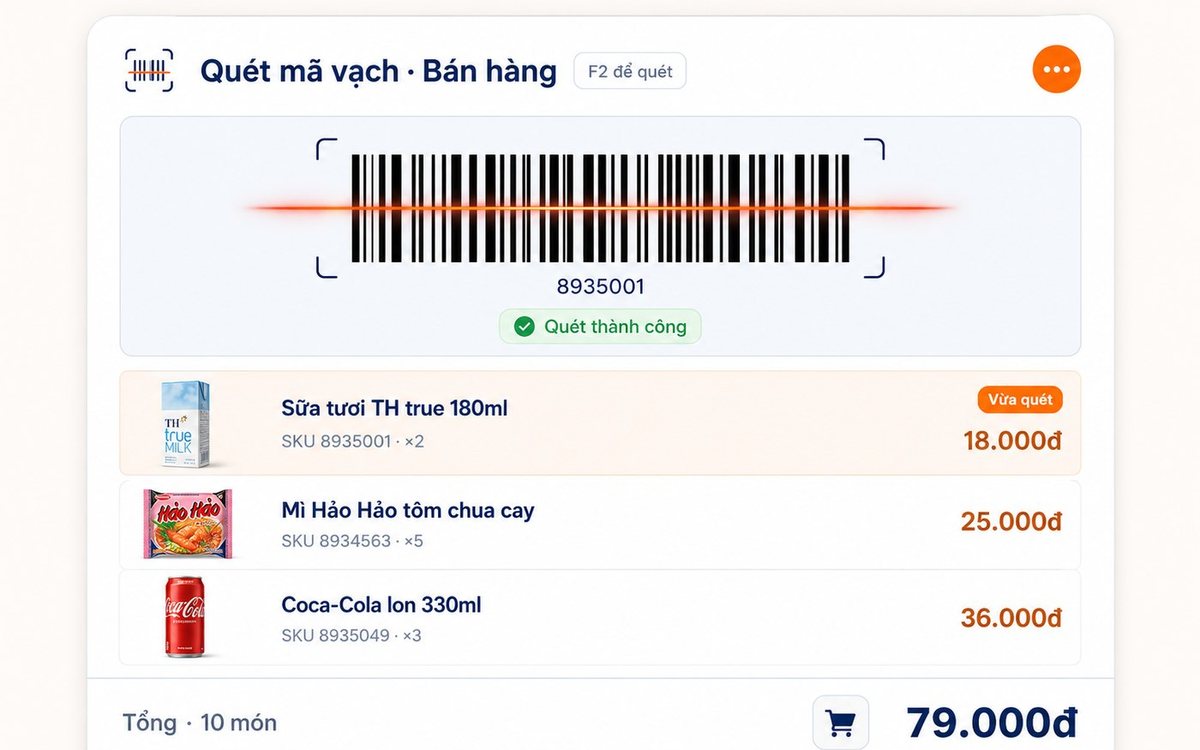
Printing barcodes and price labels in batches for retail shops
Pick the items, set the paper size and the code standard (Code 128 / EAN-13 / UPC-A), test-print one or two, then run the batch — or print straight from the purchase slip with label counts taken from the quantity received.