



At lunch the restaurant sells office set meals, in the evening it sells set menus for two and family sets, and at weekends it adds combos of a main dish with a drink. Selling this way is fast and makes pricing easy, but many restaurants set up a set as an ordinary dish: one name, one price. The result is that the kitchen gets a ticket saying "Set B x2" without knowing what is in it, stock does not deduct the ingredients of each dish, and when a guest asks to swap the sour soup for vegetable soup the cashier has to edit by hand and add a note. Set menus and combos need to be set up the right way so the kitchen, the stockroom and the counter all understand the same thing.
How a set menu differs from a combo
| Set menu | Combo | |
|---|---|---|
| Dishes inside | Fixed, set up in advance by the restaurant | The guest chooses within each group of dishes |
| Suits | Lunch sets, set meals, small party sets | Choosing a main, a side and a drink to the guest's taste |
| Set up in the software | List of dishes, attributes, unit of measure, quantity | Each group: minimum and maximum number of dishes to choose, default dish, extra charge |
| When ordering | One tap is enough | Choose enough dishes in each group before it can be added to the order |
A small restaurant with a menu that rarely changes only needs set menus. A restaurant that wants guests to choose while keeping an all-in price uses combos.
Setting up set menus and combos in Ordersys
The menu screen of the Ordersys software has an option to create a Set Menu / Combo. The "Dishes in the set menu - combo" section has two tabs:
- SetMenu. Add each dish in the set, choose an attribute if the dish has one (for example size), the unit of measure and the quantity. A guest who orders the set gets all of those dishes.
- Combo. Split the dishes into groups, for example "Main", "Soup", "Drink". For each group set the minimum and maximum number of dishes that can be chosen, mark the default dish, and enter an extra charge for upgrades such as switching to beef or a larger portion.
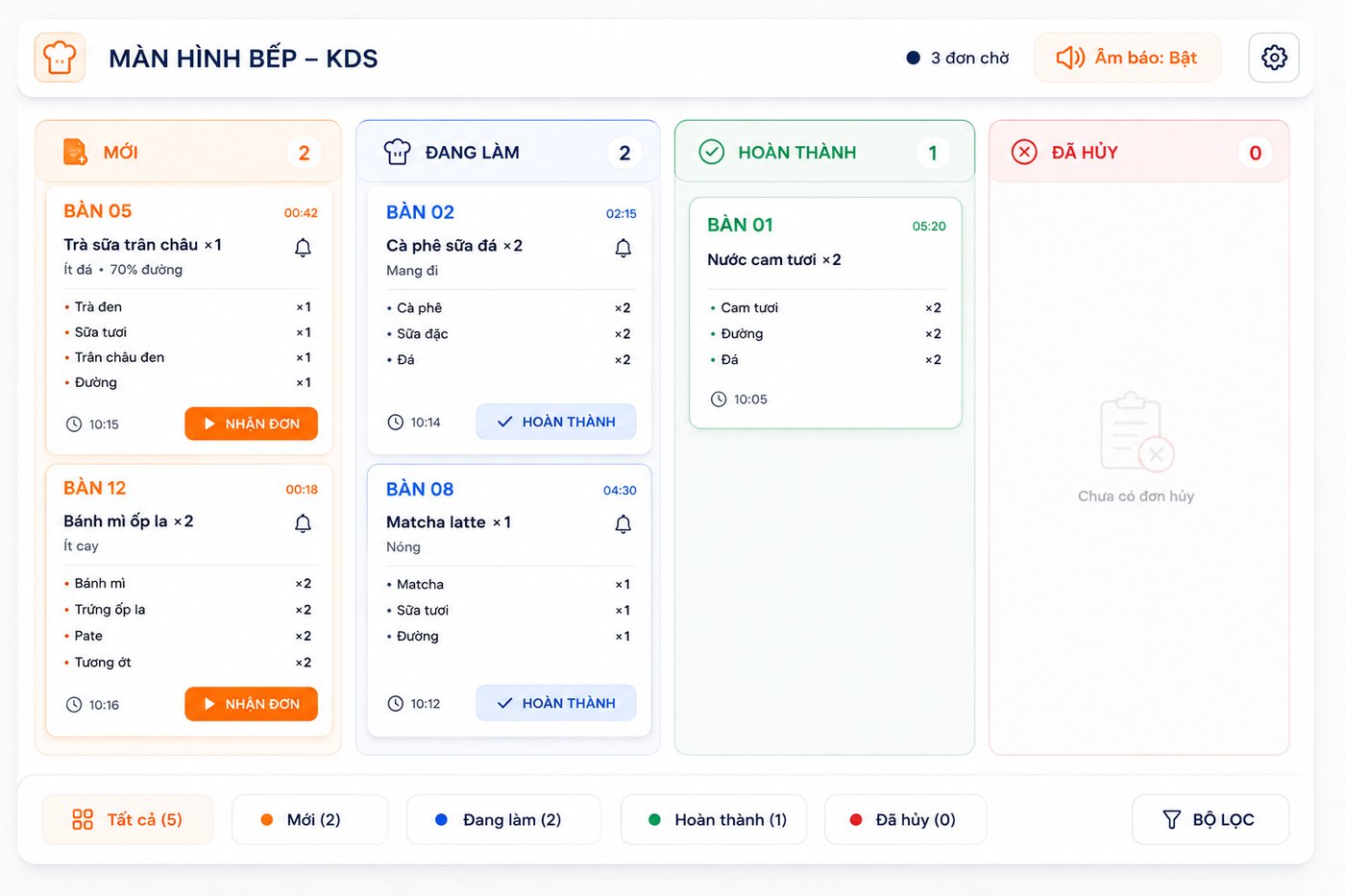
When ordering, the screen shows how many dishes can be chosen in each group, with default dishes already selected. If a group does not yet have its minimum number of dishes, the combo cannot be added to the order, so the kitchen never receives a combo with dishes missing.
What the kitchen, the bill and the stock see
- Kitchen. The kitchen screen shows the combo name with every dish the guest chose, including attributes and quantities. When the kitchen marks it done, the software sends a notification that the combo has been prepared, with the area and table number.
- Bill. The printed slip lists the dishes in the combo under the combo name. Dishes with an extra charge show the amount, so the guest can see why the total is higher than the listed combo price.
- Stock. When a set or a combo is sold, the software deducts stock for each dish inside, multiplied by the number of servings. If a dish is a prepared item, its ingredients are deducted according to the recipe set up for that dish.
Besides the cashier counter, combos can also be sold through the waiter ordering screen and when guests scan the table QR code to order for themselves.
A few things to settle before launching a new set
- Work out the cost of each dish in the set before setting the all-in price. A set being cheaper than ordering separately is normal, but you need to know how much cheaper it can be while still making a profit.
- Use extra charges for upgrades instead of creating another combo. Five variants of the same combo make the menu cluttered and the reports hard to read.
- Make the default dish the one the kitchen can prepare most easily. At busy times most guests keep the pre-selected choice.
- Set up recipes for the dishes in the set. Without recipes, stock can only deduct the finished dish, not the ingredients.
Set menus, grouped combos, the kitchen screen and recipe-based stock deduction are part of the Ordersys restaurant management software, with a free 7-day trial. How to set up recipes so that selling a dish deducts stock: see ingredient recipes: sell a dish and stock is deducted automatically. Taking banquet bookings by table or by serving with a deposit: see taking banquet bookings by table and by serving.
Staff take orders on their phones, the kitchen gets them instantly, guests order and pay by QR, owners see revenue remotely.
Other news
Unit of measure conversion: buy by the case, sell single items and keep stock accurate
When the stock book counts cases and the counter counts pieces, the two numbers cannot be compared at month end. Three ways of setting up items that throw stock off, how to set up unit conversion in the software, receiving by the case while stock counts in cans, and a few rules worth agreeing on in the stockroom.
Fingerprint time clock connected to software: hours go straight into payroll
A fingerprint device stops buddy punching, but it only records punch times. What the device does and what needs HR software, four steps from a finger on the scanner to a payslip, five things to do before buying a device, and how to handle a finger the device will not recognise.
Coffee shop shift handover: closing the shift, reconciling cash and taking over cleanly
A rushed handover of one sentence, "there's about two million in the drawer", means that when the cash is short at night nobody knows which shift it came from. Three things to settle at handover, five steps to close and open a shift in the software, what the shift details show the owner, and a few rules worth posting at the counter.

Revenue reports by stylist at a hair salon: how to read them fairly
A revenue-by-stylist table is easily read as a ranking, yet stylists on the evening shift, those taking colouring and perming, or shampoo assistants have very different numbers. Where the data comes from, which column answers which question, how to compare fairly, and using the report to finalise commission, assign customers and train staff.
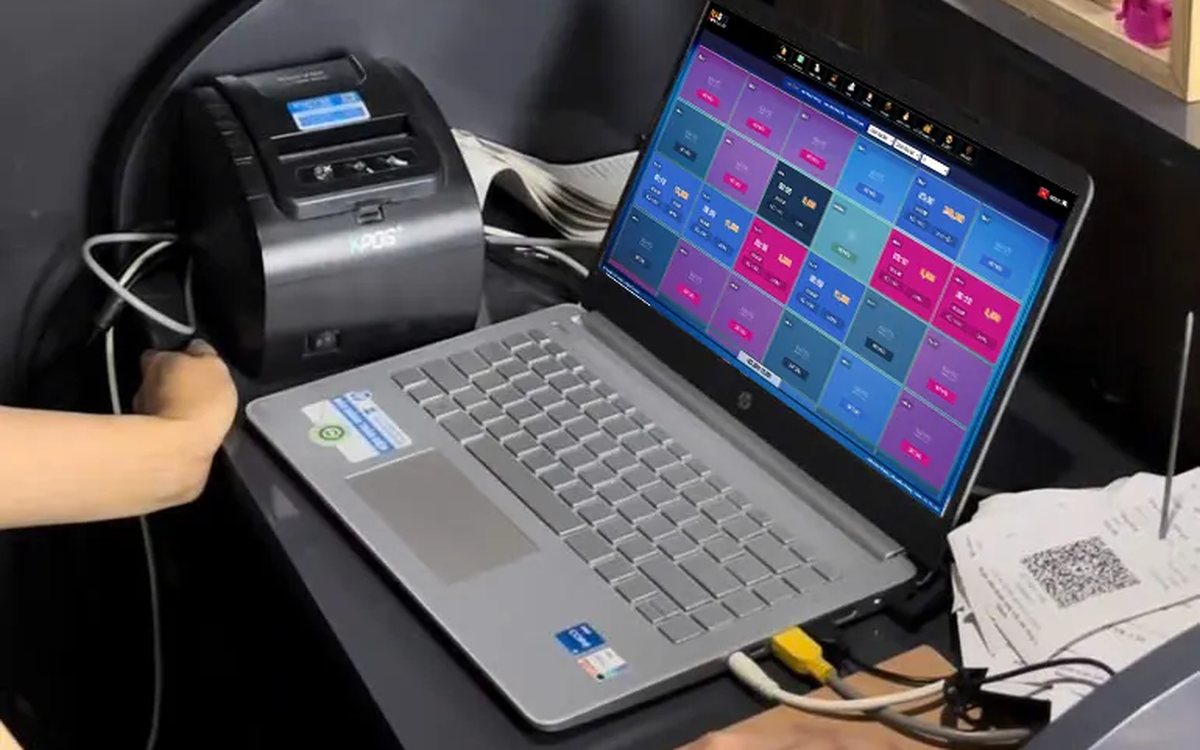
Showing the running total for a billiards table in play: give customers the right number before checkout
When customers ask "how much are we at?" and staff do the sum in their head, the bill at payment often differs and arguments follow. Two ways to see the running total in the software, what the provisional invoice includes, when the number still changes, pausing with a trail, and logging items added after an interim print.

Managing tips for karaoke room servers: recording and sharing them transparently
Karaoke guests tip in cash, by adding to the bill or by overpaying a transfer. The last two pass through the venue's fund, and if nobody records them, suspicion follows. Three kinds of tips and where the money sits, individual or pooled tips, recording tips at payment, and paying them out at shift end transparently.
Duplicate customers in your list: how to merge them without losing history
One customer with three profiles means points split three ways, never reaching a higher tier, and reports counting them as new customers. Five sources of duplicates, the signs to look for, how to merge while keeping purchase history and loyalty points, and counter habits that stop duplicates from the start.

Booking deposits for nail salons in peak season: who to ask, what to say, where the money goes
In peak season, every missed booking wastes a prime time slot of your best technician. Which bookings need a deposit and which do not, three things to say when you take one, which technician it holds, and how the deposit moves through the software so the cash fund still matches at the end of the day.
QR digital menu: change prices and hide sold-out dishes without reprinting
A QR menu can change right away without reprinting, but you need the right switch. Three ways to stop customers ordering a dish by QR, whether a price change affects dishes already ordered, what the kitchen's Sold out button really does, and a three-step routine for busy hours.
